Data
Data table
Records in rows and columns that readers can sort, search, filter, select and page through, and that turn into cards on a phone.
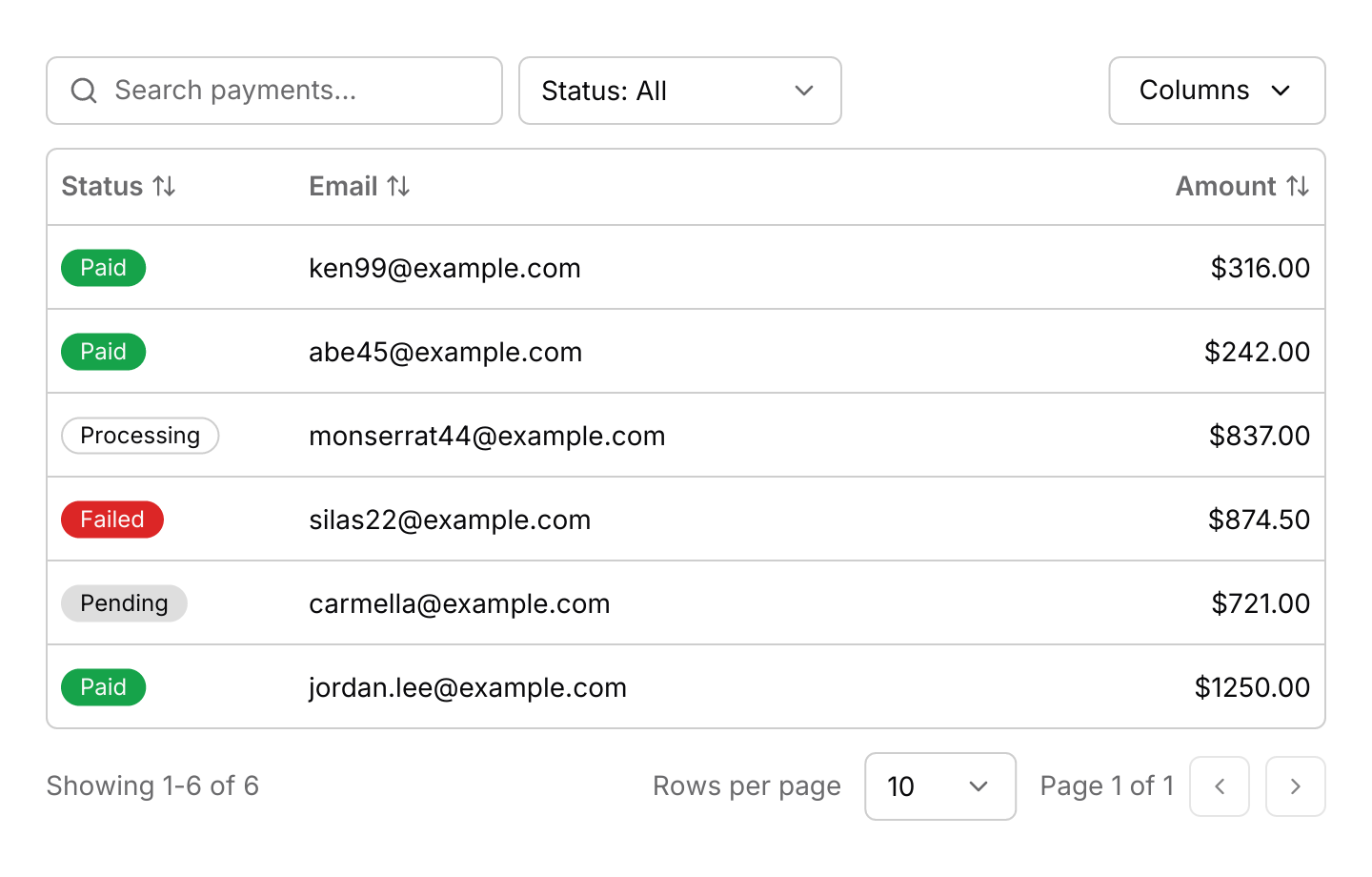
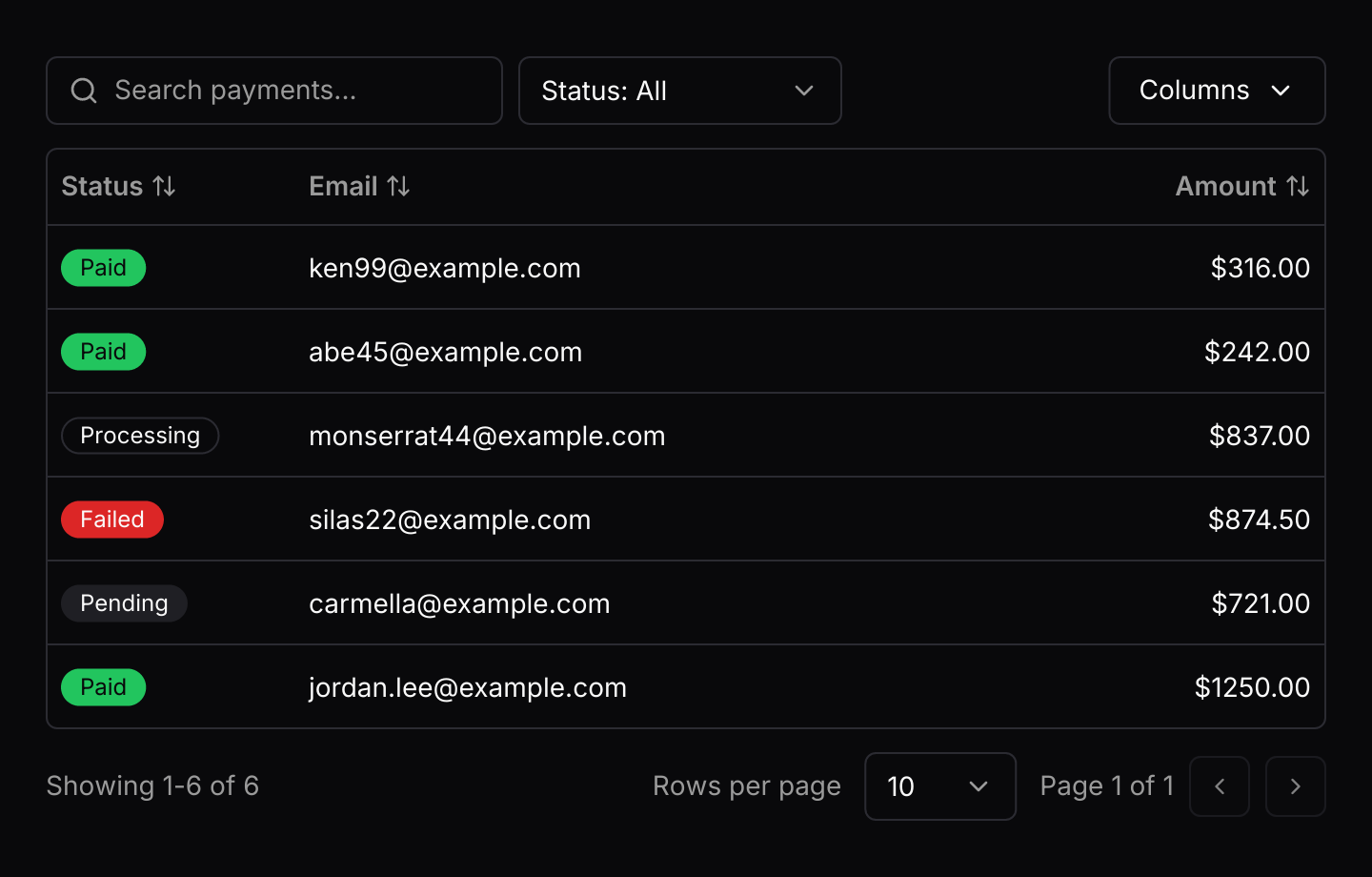
use iced::{Element, Length};
use iced_cube::badge;
use iced_cube::data::data_table::{self, Align, Event, State, data_table};
use iced_cube::feedback::badge::Variant;

#[derive(Debug, Clone, Copy, PartialEq)]
pub enum Status {
    Paid,
    Pending,
    Processing,
    Failed,
}

impl Status {
    fn label(self) -> &'static str {
        match self {
            Status::Paid => "Paid",
            Status::Pending => "Pending",
            Status::Processing => "Processing",
            Status::Failed => "Failed",
        }
    }

    fn badge(self) -> Variant {
        match self {
            Status::Paid => Variant::Success,
            Status::Pending => Variant::Secondary,
            Status::Processing => Variant::Outline,
            Status::Failed => Variant::Destructive,
        }
    }
}

#[derive(Debug, Clone)]
pub struct Payment {
    id: &'static str,
    status: Status,
    email: &'static str,
    amount: f64,
}

const PAYMENTS: [Payment; 6] = [
    Payment {
        id: "PAY-3021",
        status: Status::Paid,
        email: "ken99@example.com",
        amount: 316.0,
    },
    Payment {
        id: "PAY-3022",
        status: Status::Paid,
        email: "abe45@example.com",
        amount: 242.0,
    },
    Payment {
        id: "PAY-3023",
        status: Status::Processing,
        email: "monserrat44@example.com",
        amount: 837.0,
    },
    Payment {
        id: "PAY-3024",
        status: Status::Failed,
        email: "silas22@example.com",
        amount: 874.5,
    },
    Payment {
        id: "PAY-3025",
        status: Status::Pending,
        email: "carmella@example.com",
        amount: 721.0,
    },
    Payment {
        id: "PAY-3026",
        status: Status::Paid,
        email: "jordan.lee@example.com",
        amount: 1250.0,
    },
];

#[derive(Debug, Clone)]
pub enum Message {
    Payments(Event<&'static str>),
}

#[derive(Debug)]
pub struct Example {
    payments: State<Payment, &'static str>,
}

impl Default for Example {
    fn default() -> Self {
        let columns = [
            data_table::column("status", "Status", |p: &Payment| p.status.label().into())
                .width(130)
                .filterable(true),
            data_table::column("email", "Email", |p: &Payment| p.email.into())
                .width(Length::FillPortion(3)),
            data_table::column("amount", "Amount", |p: &Payment| p.amount.into())
                .align(Align::End)
                .format(|p| format!("${:.2}", p.amount)),
        ];

        Self {
            payments: State::new(columns, PAYMENTS, |p| p.id),
        }
    }
}

impl Example {
    pub fn update(&mut self, message: Message) {
        match message {
            Message::Payments(event) => {
                let _ = self.payments.update(event);
            }
        }
    }

    pub fn view(&self) -> Element<'_, Message> {
        data_table(&self.payments)
            .placeholder("Search payments...")
            .cell("status", |p: &Payment| {
                badge(p.status.label()).variant(p.status.badge()).into()
            })
            .on_event(Message::Payments)
            .into()
    }
}Usage
A data table shows records that share the same fields, such as payments or invoices. State is generic over your own row type: the columns read each row through plain functions, so sorting, searching and filtering work on your data without copying it into strings first. The app owns the state, routes the table’s events into it and acts on the outputs.
Pressing a header sorts by that column, then reverses the order, then restores the original order. The search box looks through every visible searchable column, and a filterable column adds a select of its values to the toolbar. The Columns menu hides and shows columns, but always leaves one. The footer changes the page size and turns the pages, and only the rows of the current page that are in view are built, so a table of thousands of rows stays quick.
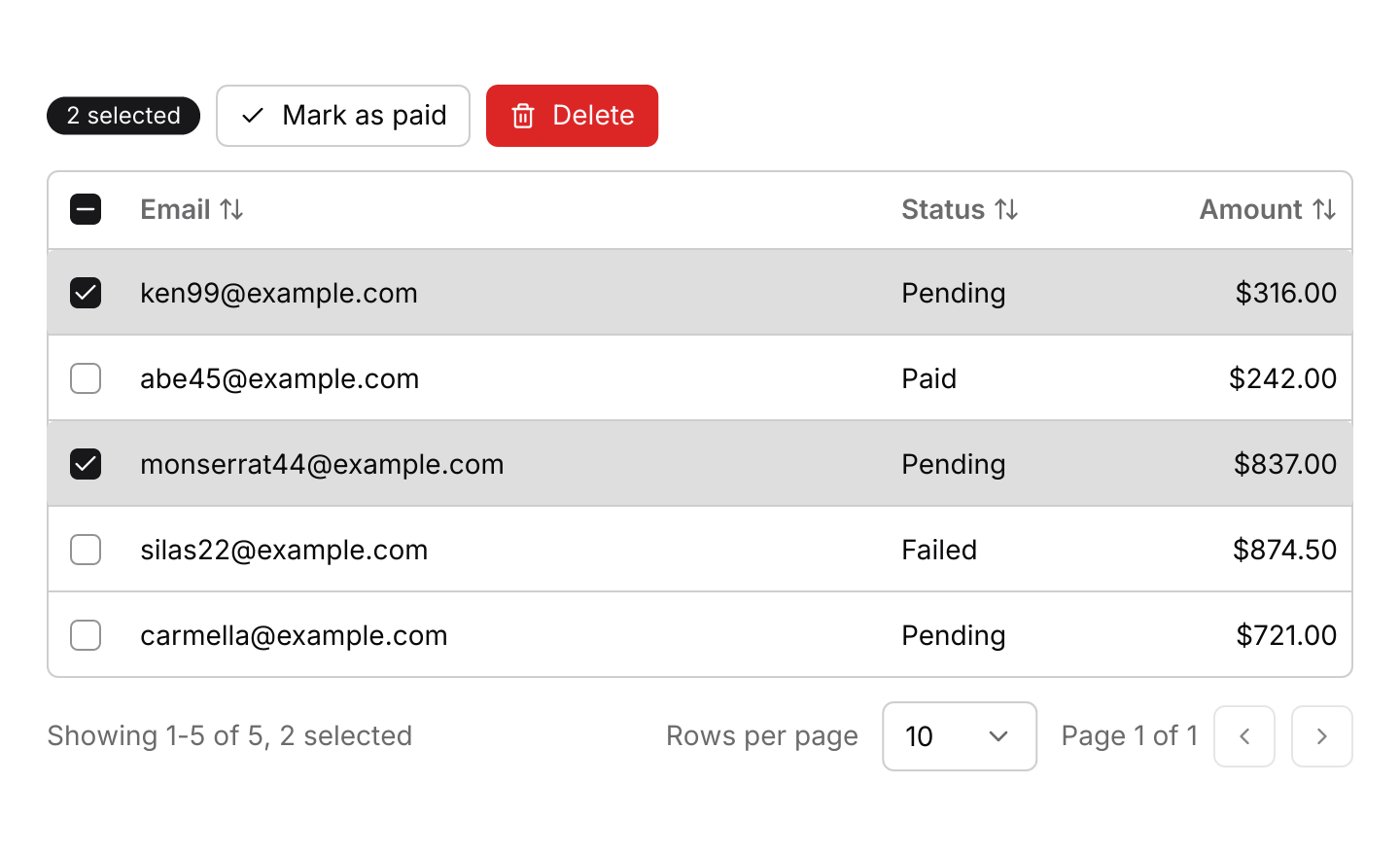
With selection on, every row has a checkbox and the header has one that selects or clears the rows on the current page only. The selection belongs to row keys, so it survives sorting, filtering and turning pages. Build bulk actions from state.selected() next to the table, as the selection example does.
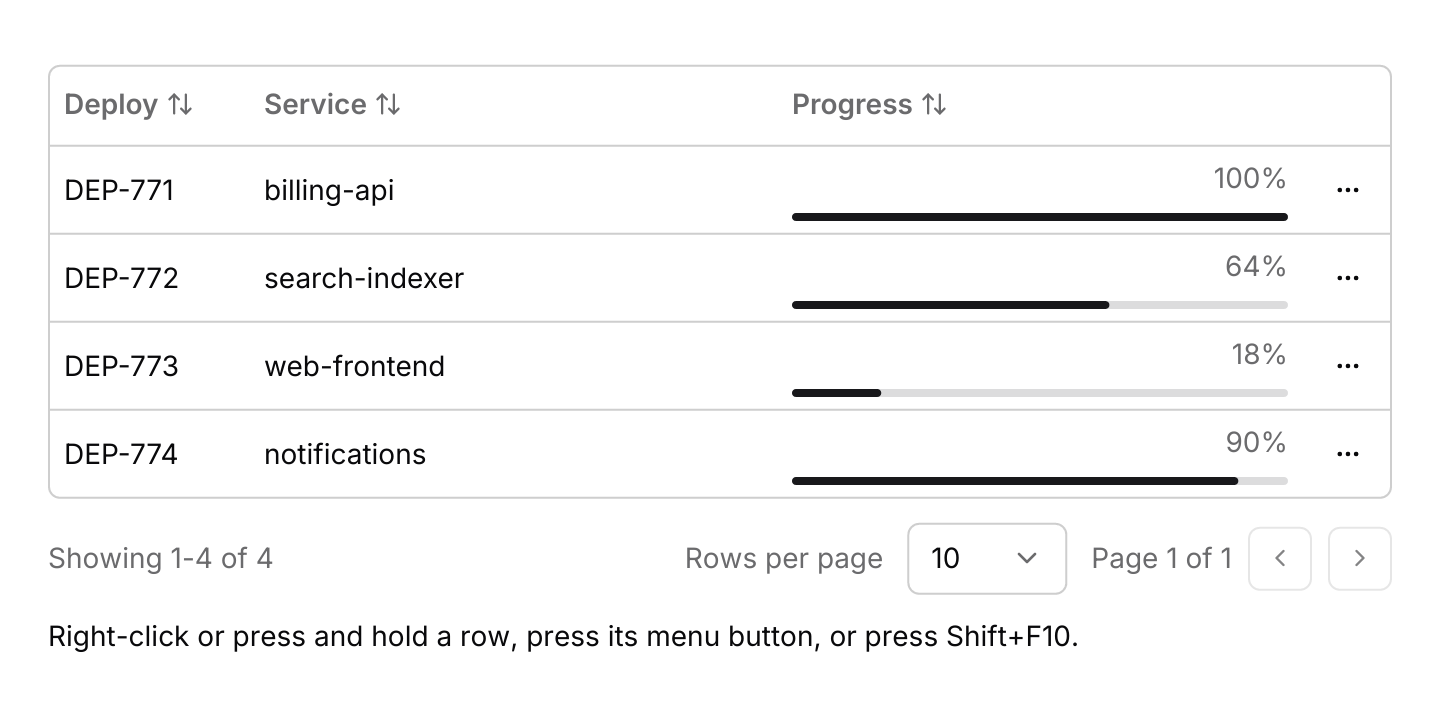
For actions on one row, pass one context_menu::State for every row with .context_menu. It opens on a right-click or a long press, and .row_actions(true) adds a visible button for touch screens. While the table has focus, Shift+F10 opens the menu on the highlighted row. The row the menu opened on carries the ring while it is open.
The table takes focus when pressed and resolves its keys only then, so its arrow keys, Space and Escape never clash with other components. The highlight moves on to the next page after the last row, and scrolls into view in a table with a fixed height.
Below its breakpoint the table becomes a stack of cards, one per row: the first column heads each card, and the other columns become labelled lines. A select above the cards takes over from the sortable headers. Nothing scrolls sideways or runs off the edge of a phone screen.
Examples
Pagination
243 invoices in pages of 10, 25, 50 or 100. The rows scroll under a header that stays put, and only the rows in view are built.
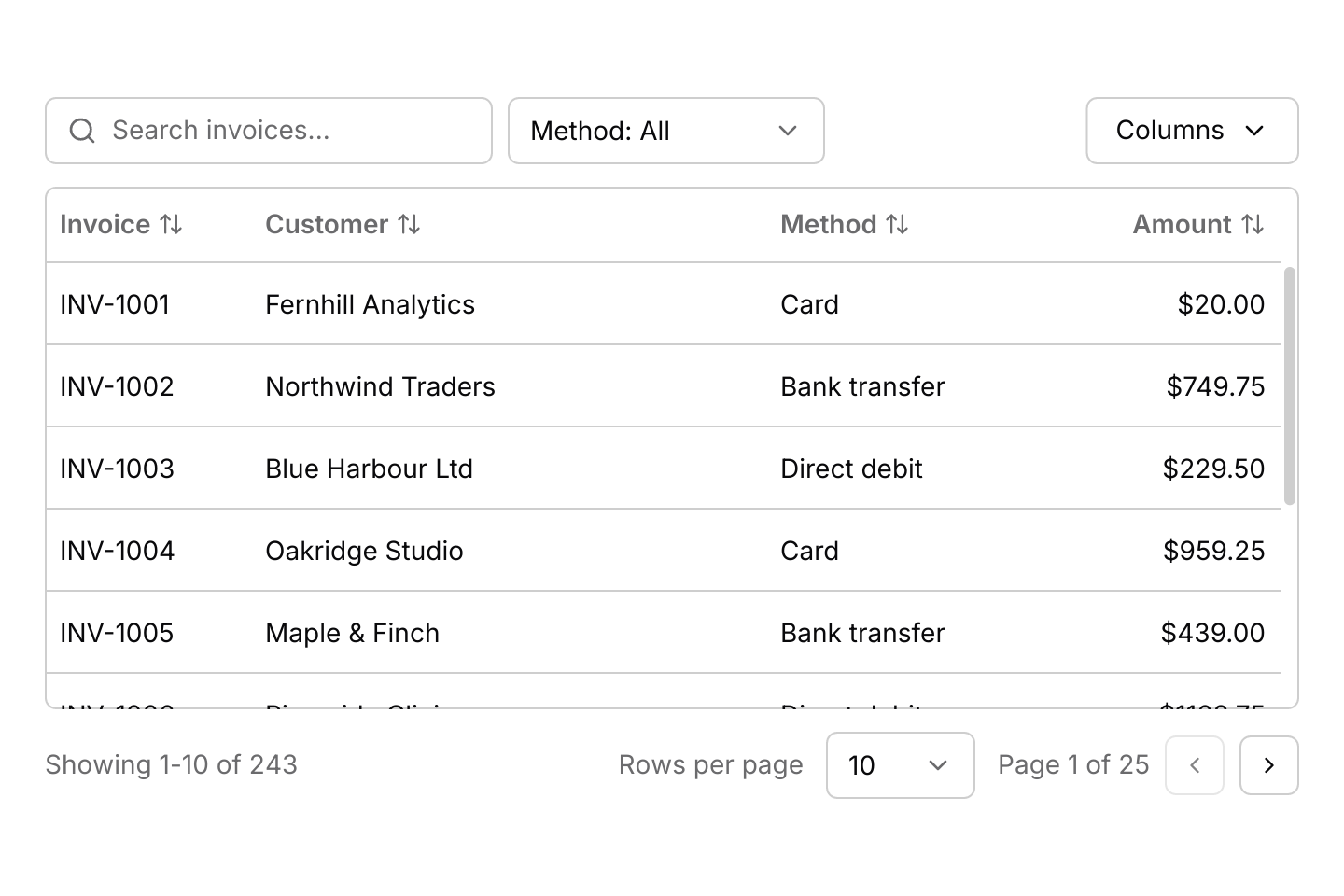
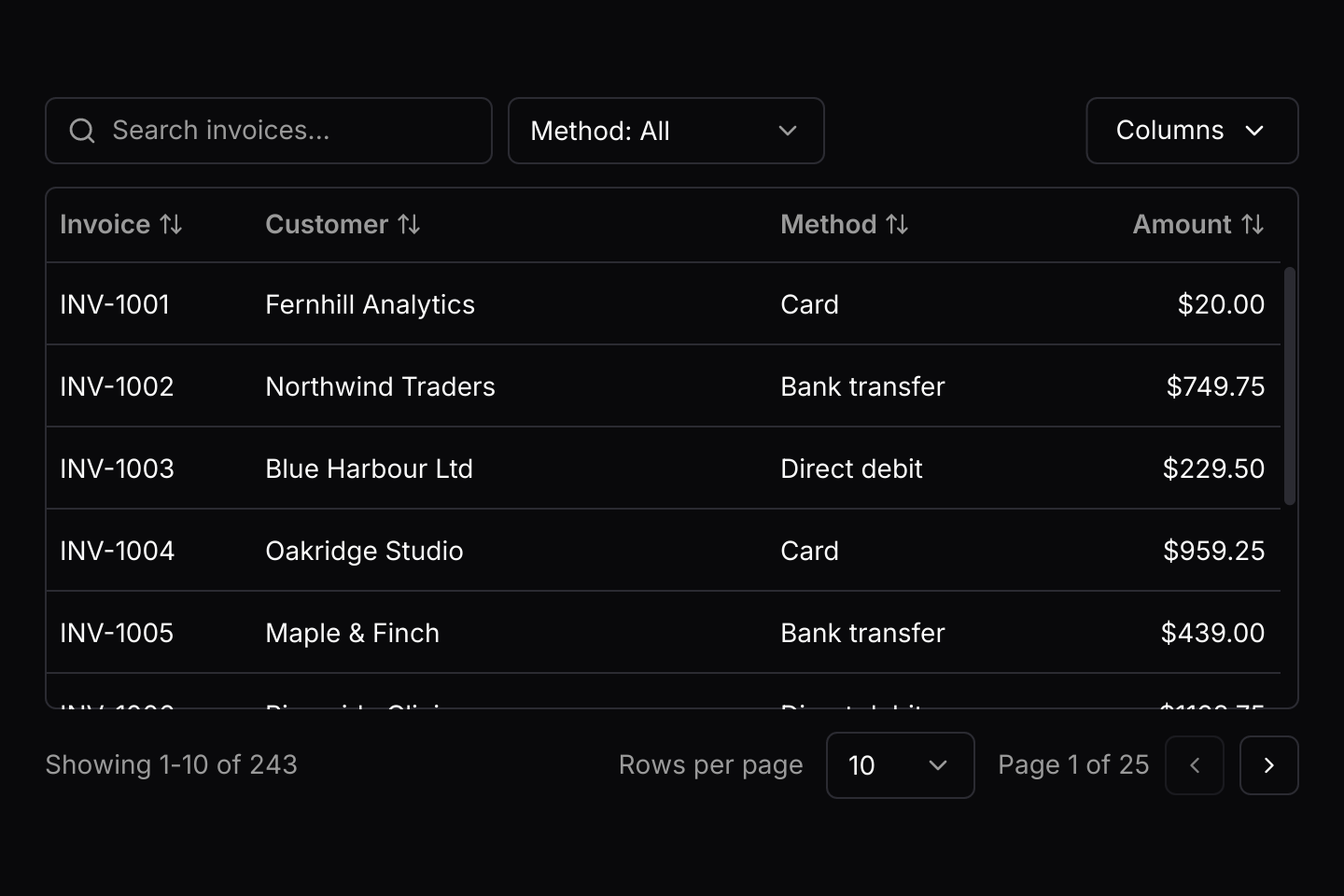
use iced::{Element, Length};
use iced_cube::data::data_table::{self, Align, Event, State, data_table};

#[derive(Debug, Clone)]
pub struct Invoice {
    number: u32,
    customer: String,
    method: &'static str,
    amount: f64,
}

const CUSTOMERS: [&str; 7] = [
    "Fernhill Analytics",
    "Northwind Traders",
    "Blue Harbour Ltd",
    "Oakridge Studio",
    "Maple & Finch",
    "Riverside Clinic",
    "Kestrel Logistics",
];
const METHODS: [&str; 3] = ["Card", "Bank transfer", "Direct debit"];

/// 243 invoices, as a server might return them.
fn invoices() -> Vec<Invoice> {
    (0..243_u32)
        .map(|index| Invoice {
            number: 1001 + index,
            customer: CUSTOMERS[index as usize % CUSTOMERS.len()].to_owned(),
            method: METHODS[index as usize % METHODS.len()],
            amount: f64::from((index * 7919) % 5000) / 4.0 + 20.0,
        })
        .collect()
}

#[derive(Debug, Clone)]
pub enum Message {
    Invoices(Event<u32>),
}

#[derive(Debug)]
pub struct Example {
    invoices: State<Invoice, u32>,
}

impl Default for Example {
    fn default() -> Self {
        let columns = [
            data_table::column("number", "Invoice", |i: &Invoice| i.number.into())
                .width(110)
                .format(|i| format!("INV-{}", i.number)),
            data_table::column("customer", "Customer", |i: &Invoice| {
                i.customer.clone().into()
            })
            .width(Length::FillPortion(3)),
            data_table::column("method", "Method", |i: &Invoice| i.method.into())
                .width(Length::FillPortion(2))
                .filterable(true),
            data_table::column("amount", "Amount", |i: &Invoice| i.amount.into())
                .align(Align::End)
                .format(|i| format!("${:.2}", i.amount)),
        ];

        Self {
            invoices: State::new(columns, invoices(), |i| i.number)
                .with_page_sizes([10, 25, 50, 100]),
        }
    }
}

impl Example {
    pub fn update(&mut self, message: Message) {
        match message {
            Message::Invoices(event) => {
                let _ = self.invoices.update(event);
            }
        }
    }

    pub fn view(&self) -> Element<'_, Message> {
        // A fixed height scrolls the rows under a header that stays put.
        data_table(&self.invoices)
            .placeholder("Search invoices...")
            .height(280)
            .on_event(Message::Invoices)
            .into()
    }
}Selection and bulk actions
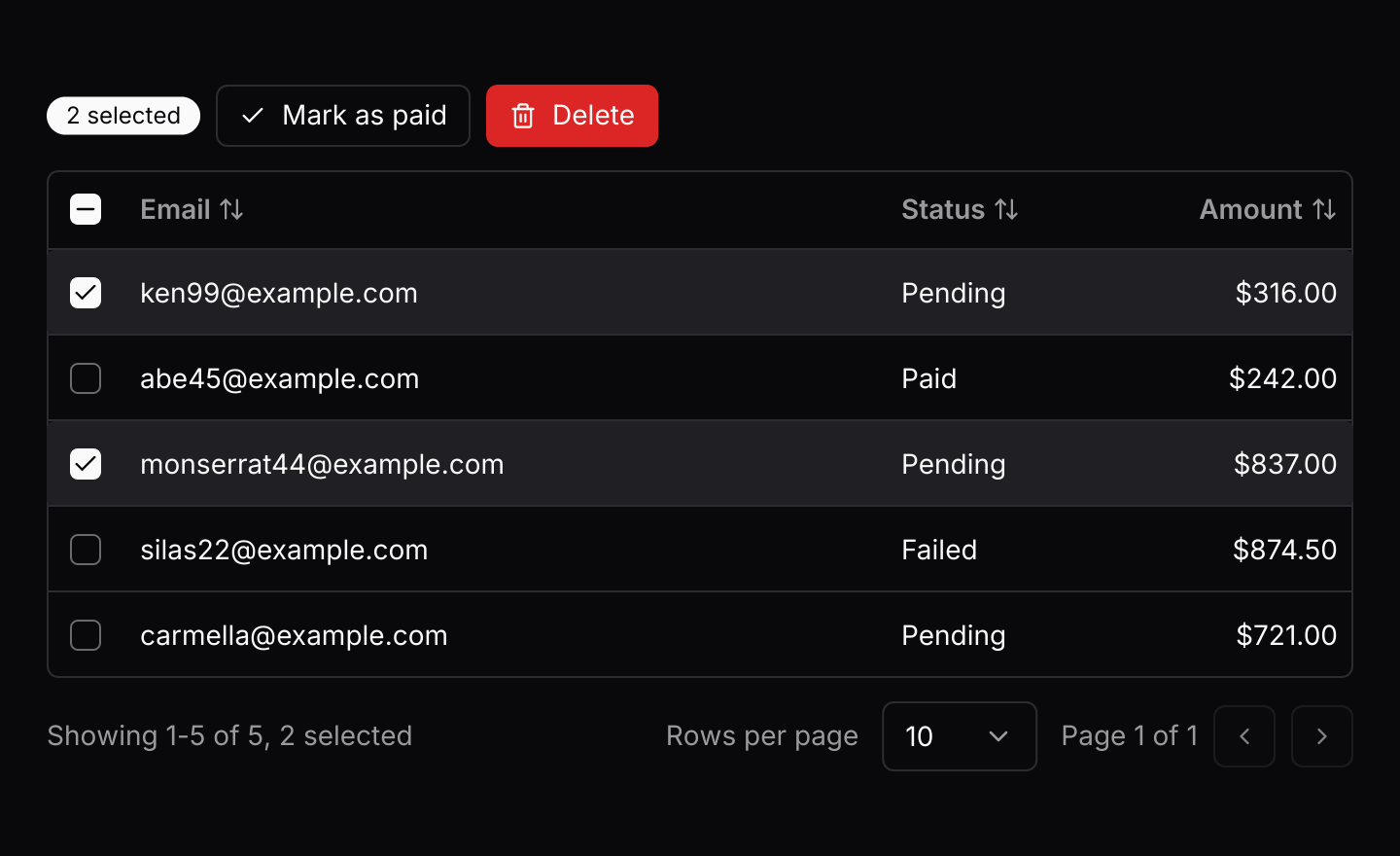
A checkbox on every row, and a header checkbox that selects or clears the rows on the page. Buttons above act on the selection.
use iced::widget::{column, row};
use iced::{Alignment, Element, Length};
use iced_cube::data::data_table::{self, Align, Event, State, data_table};
use iced_cube::feedback::badge::Variant as BadgeVariant;
use iced_cube::primitives::button::{Size, Variant};
use iced_cube::{badge, button, lucide};

#[derive(Debug, Clone)]
pub struct Payment {
    id: u32,
    email: &'static str,
    status: &'static str,
    amount: f64,
}

fn payment(id: u32, email: &'static str, status: &'static str, amount: f64) -> Payment {
    Payment {
        id,
        email,
        status,
        amount,
    }
}

#[derive(Debug, Clone)]
pub enum Message {
    Payments(Event<u32>),
    MarkPaid,
    Delete,
}

#[derive(Debug)]
pub struct Example {
    payments: State<Payment, u32>,
}

impl Default for Example {
    fn default() -> Self {
        let columns = [
            data_table::column("email", "Email", |p: &Payment| p.email.into())
                .width(Length::FillPortion(3)),
            data_table::column("status", "Status", |p: &Payment| p.status.into()).width(110),
            data_table::column("amount", "Amount", |p: &Payment| p.amount.into())
                .align(Align::End)
                .format(|p| format!("${:.2}", p.amount)),
        ];
        let rows = [
            payment(1, "ken99@example.com", "Pending", 316.0),
            payment(2, "abe45@example.com", "Paid", 242.0),
            payment(3, "monserrat44@example.com", "Pending", 837.0),
            payment(4, "silas22@example.com", "Failed", 874.5),
            payment(5, "carmella@example.com", "Pending", 721.0),
        ];
        let mut payments = State::new(columns, rows, |p| p.id).with_selection(true);
        let _ = payments.update(Event::Select(1, true));
        let _ = payments.update(Event::Select(3, true));

        Self { payments }
    }
}

impl Example {
    pub fn update(&mut self, message: Message) {
        match message {
            Message::Payments(event) => {
                let _ = self.payments.update(event);
            }
            Message::MarkPaid => {
                for id in self.payments.selected() {
                    self.payments.update_row(&id, |p| p.status = "Paid");
                }
                let _ = self.payments.update(Event::ClearSelection);
            }
            Message::Delete => {
                let selected = self.payments.selected();
                self.payments.retain(|p| !selected.contains(&p.id));
            }
        }
    }

    pub fn view(&self) -> Element<'_, Message> {
        let count = self.payments.selected().len();
        let any = count > 0;
        let actions = row![
            badge(format!("{count} selected")).variant(if any {
                BadgeVariant::Default
            } else {
                BadgeVariant::Secondary
            }),
            button("Mark as paid")
                .icon(lucide!(Check))
                .variant(Variant::Outline)
                .size(Size::Sm)
                .on_press_maybe(any.then_some(Message::MarkPaid)),
            button("Delete")
                .icon(lucide!(Trash))
                .variant(Variant::Destructive)
                .size(Size::Sm)
                .on_press_maybe(any.then_some(Message::Delete)),
        ]
        .spacing(8)
        .align_y(Alignment::Center)
        .wrap();

        column![
            actions,
            data_table(&self.payments)
                .toolbar(false)
                .on_event(Message::Payments),
        ]
        .spacing(12)
        .into()
    }
}Row actions
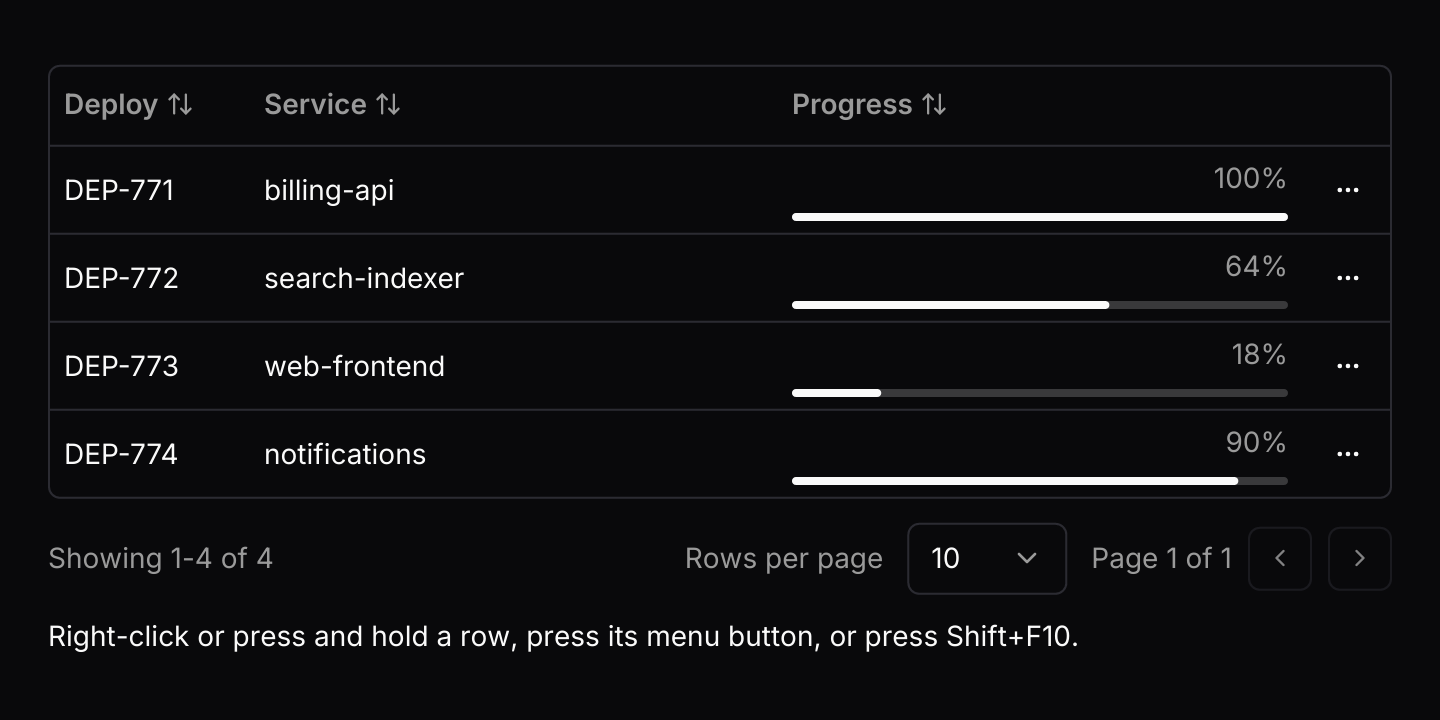
One context menu shared by every row, opened by a right-click, a long press, the row's menu button or Shift+F10. The progress column is a custom cell.
use iced::widget::{column, text};
use iced::{Element, Length};
use iced_cube::context_menu;
use iced_cube::data::data_table::{self, Event, State, data_table};
use iced_cube::dropdown_menu::{Output, item, separator};
use iced_cube::feedback::progress::Size as ProgressSize;
use iced_cube::{lucide, progress};

#[derive(Debug, Clone, Copy, PartialEq)]
pub enum Action {
    CopyId,
    ViewLogs,
    Retry,
    Cancel,
}

#[derive(Debug, Clone)]
pub struct Deploy {
    id: &'static str,
    service: &'static str,
    progress: f32,
}

const DEPLOYS: [Deploy; 4] = [
    Deploy {
        id: "DEP-771",
        service: "billing-api",
        progress: 1.0,
    },
    Deploy {
        id: "DEP-772",
        service: "search-indexer",
        progress: 0.64,
    },
    Deploy {
        id: "DEP-773",
        service: "web-frontend",
        progress: 0.18,
    },
    Deploy {
        id: "DEP-774",
        service: "notifications",
        progress: 0.9,
    },
];

#[derive(Debug, Clone)]
pub enum Message {
    Deploys(Event<&'static str>),
    Menu(context_menu::Event<Action, &'static str>),
}

#[derive(Debug)]
pub struct Example {
    deploys: State<Deploy, &'static str>,
    menu: context_menu::State<Action, &'static str>,
    last: String,
}

impl Default for Example {
    fn default() -> Self {
        let columns = [
            data_table::column("id", "Deploy", |d: &Deploy| d.id.into()).width(100),
            data_table::column("service", "Service", |d: &Deploy| d.service.into()),
            data_table::column("progress", "Progress", |d: &Deploy| d.progress.into())
                .searchable(false),
        ];
        let menu = context_menu::State::new([
            item(Action::CopyId, "Copy deploy ID").icon(lucide!(Copy)),
            item(Action::ViewLogs, "View logs").icon(lucide!(ScrollText)),
            item(Action::Retry, "Retry").icon(lucide!(RotateCw)),
            separator(),
            item(Action::Cancel, "Cancel deploy")
                .icon(lucide!(CircleX))
                .destructive(true),
        ]);

        Self {
            deploys: State::new(columns, DEPLOYS, |d| d.id),
            menu,
            last: "Right-click or press and hold a row, press its menu button, or press Shift+F10."
                .into(),
        }
    }
}

impl Example {
    pub fn update(&mut self, message: Message) {
        match message {
            Message::Deploys(event) => {
                let _ = self.deploys.update(event);
            }
            Message::Menu(event) => {
                let chosen = self.menu.update(event);
                if let (Some(Output::Activated(action)), Some(id)) = (chosen, self.menu.target()) {
                    self.last = format!("{action:?} on {id}");
                }
            }
        }
    }

    pub fn view(&self) -> Element<'_, Message> {
        column![
            data_table(&self.deploys)
                .toolbar(false)
                .cell("progress", |d: &Deploy| {
                    progress(d.progress)
                        .size(ProgressSize::Sm)
                        .show_percentage(true)
                        .into()
                })
                .context_menu(&self.menu, Message::Menu)
                .row_actions(true)
                .on_event(Message::Deploys),
            text(&self.last).size(14),
        ]
        .spacing(12)
        .width(Length::Fill)
        .into()
    }
}Loading
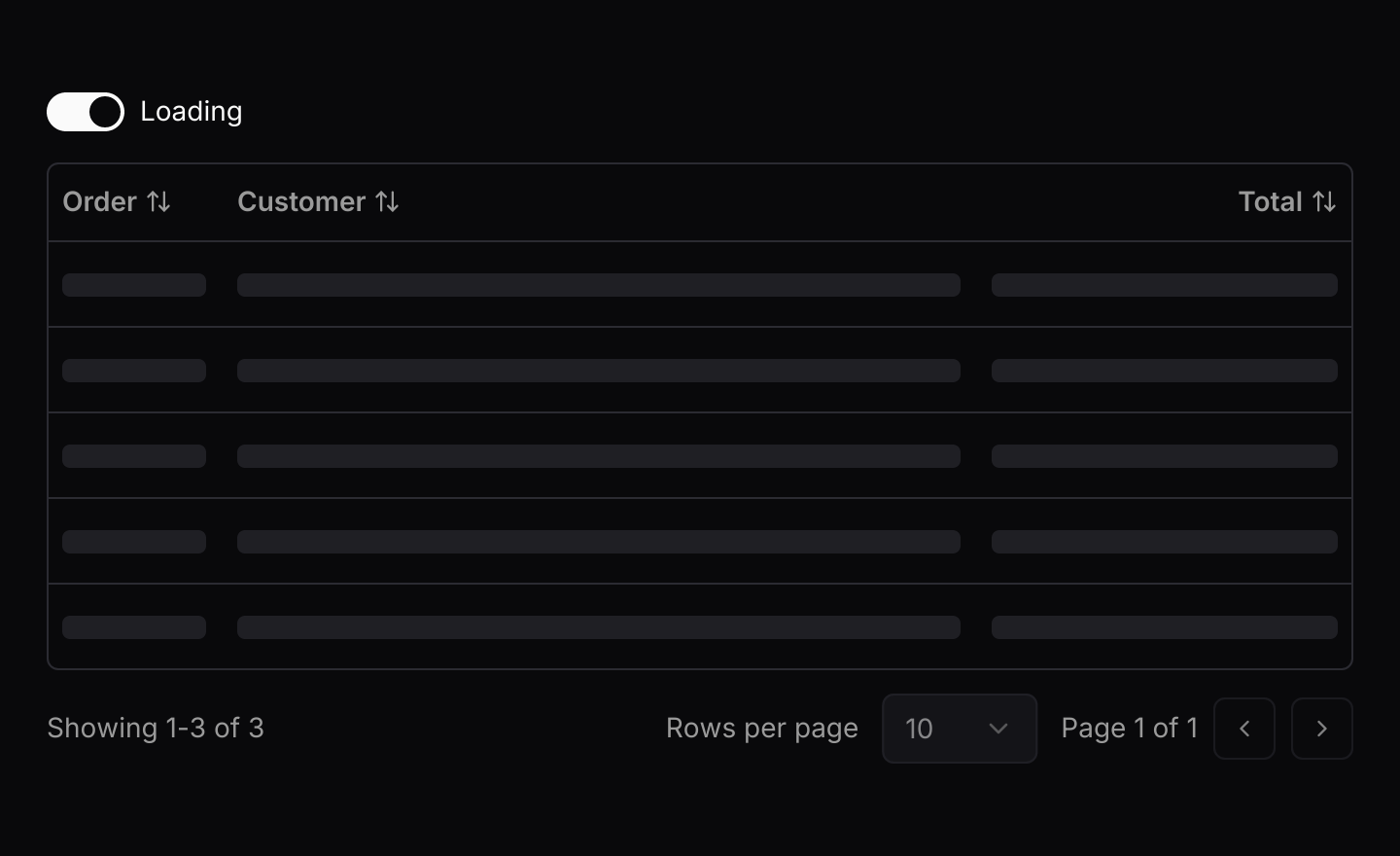
Placeholder rows while the data loads. The switch toggles them.
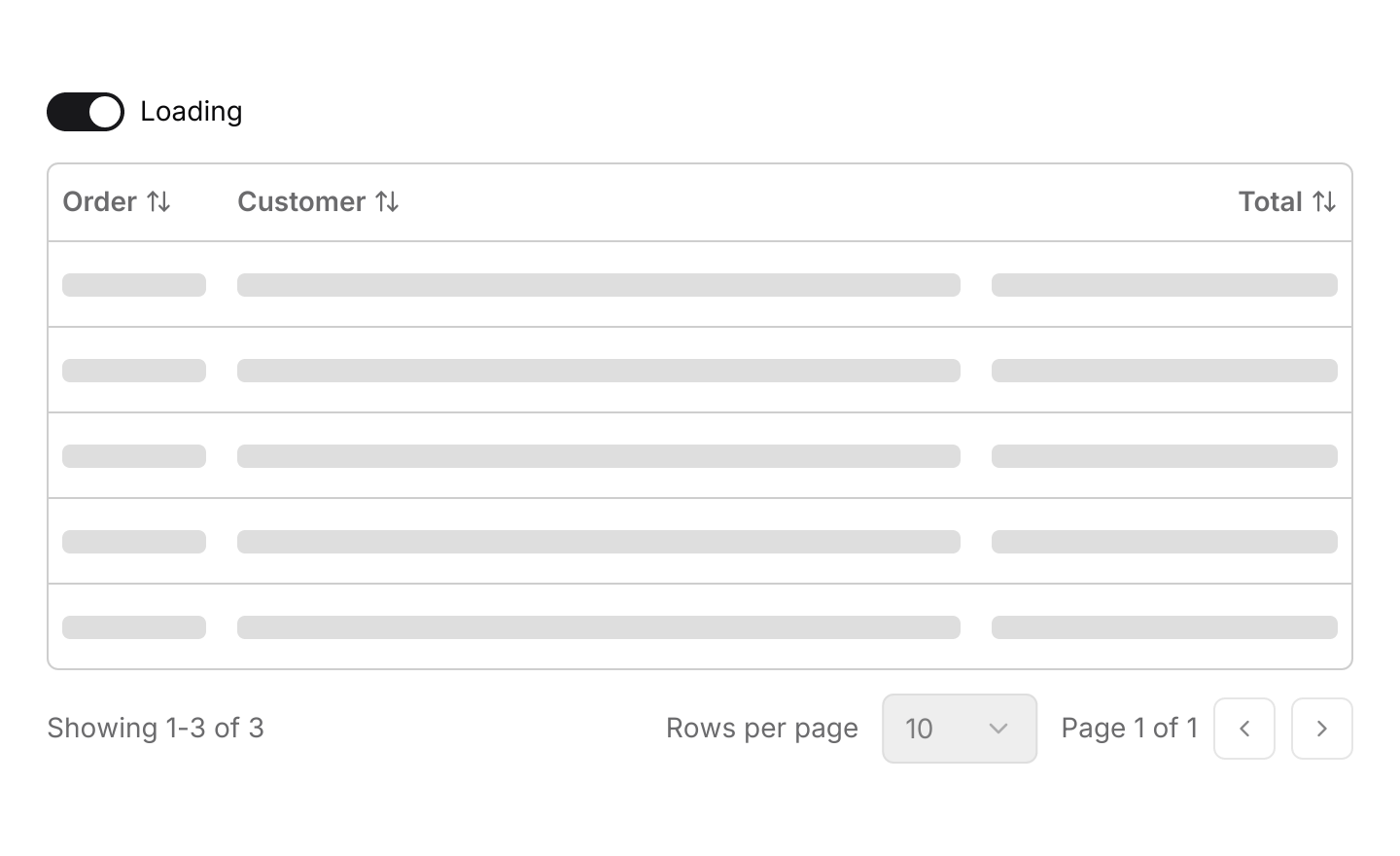
use iced::widget::column;
use iced::{Element, Length};
use iced_cube::data::data_table::{self, Align, Event, State, data_table};
use iced_cube::primitives::switch::switch;

#[derive(Debug, Clone)]
pub struct Order {
    id: u32,
    customer: &'static str,
    total: f64,
}

#[derive(Debug, Clone)]
pub enum Message {
    Orders(Event<u32>),
    Loading(bool),
}

#[derive(Debug)]
pub struct Example {
    orders: State<Order, u32>,
    loading: bool,
}

impl Default for Example {
    fn default() -> Self {
        let columns = [
            data_table::column("id", "Order", |o: &Order| o.id.into()).width(90),
            data_table::column("customer", "Customer", |o: &Order| o.customer.into())
                .width(Length::FillPortion(2)),
            data_table::column("total", "Total", |o: &Order| o.total.into())
                .align(Align::End)
                .format(|o| format!("${:.2}", o.total)),
        ];
        let rows = [
            Order {
                id: 1042,
                customer: "Oakridge Studio",
                total: 189.0,
            },
            Order {
                id: 1043,
                customer: "Maple & Finch",
                total: 64.5,
            },
            Order {
                id: 1044,
                customer: "Riverside Clinic",
                total: 1210.0,
            },
        ];

        Self {
            orders: State::new(columns, rows, |o| o.id),
            loading: true,
        }
    }
}

impl Example {
    pub fn update(&mut self, message: Message) {
        match message {
            Message::Orders(event) => {
                let _ = self.orders.update(event);
            }
            Message::Loading(loading) => self.loading = loading,
        }
    }

    pub fn view(&self) -> Element<'_, Message> {
        column![
            switch(self.loading)
                .label("Loading")
                .on_toggle(Message::Loading),
            data_table(&self.orders)
                .toolbar(false)
                .loading(self.loading)
                .on_event(Message::Orders),
        ]
        .spacing(16)
        .into()
    }
}Empty
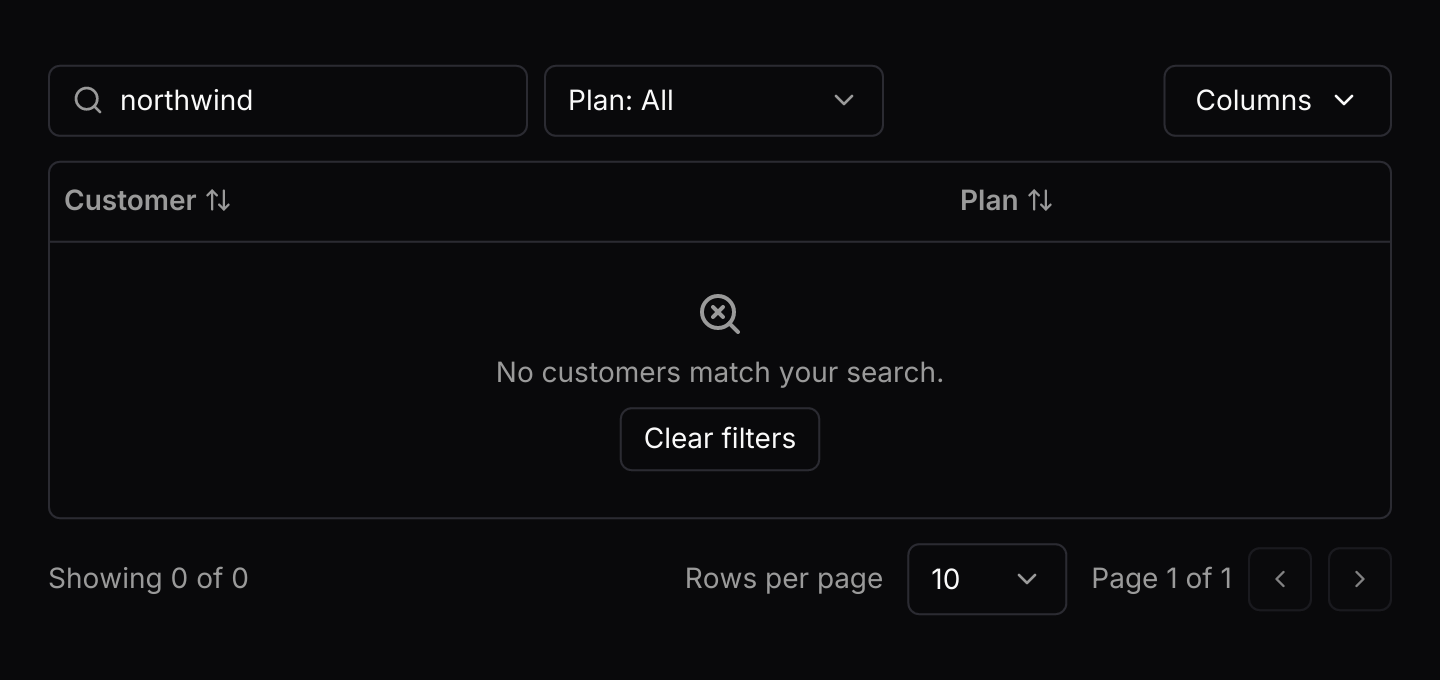
A message in place of rows when nothing matches, with a button that clears the search.
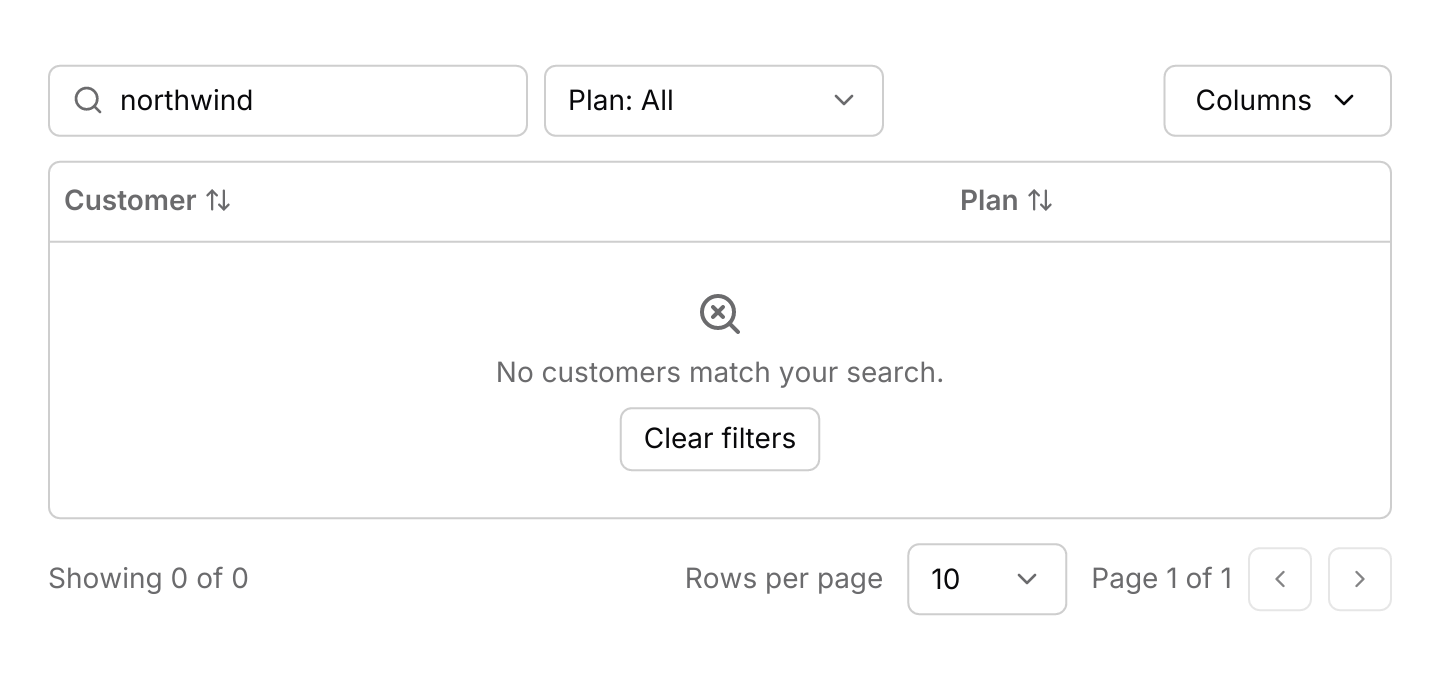
use iced::{Element, Length};
use iced_cube::data::data_table::{self, Event, State, data_table};

#[derive(Debug, Clone)]
pub struct Customer {
    name: &'static str,
    plan: &'static str,
}

#[derive(Debug, Clone)]
pub enum Message {
    Customers(Event<&'static str>),
}

#[derive(Debug)]
pub struct Example {
    customers: State<Customer, &'static str>,
}

impl Default for Example {
    fn default() -> Self {
        let columns = [
            data_table::column("name", "Customer", |c: &Customer| c.name.into())
                .width(Length::FillPortion(2)),
            data_table::column("plan", "Plan", |c: &Customer| c.plan.into()).filterable(true),
        ];
        let rows = [
            Customer {
                name: "Oakridge Studio",
                plan: "Team",
            },
            Customer {
                name: "Kestrel Logistics",
                plan: "Enterprise",
            },
        ];
        let mut customers = State::new(columns, rows, |c| c.name);
        // A search that matches nothing, so the empty state shows.
        let _ = customers.update(Event::Search("northwind".into()));

        Self { customers }
    }
}

impl Example {
    pub fn update(&mut self, message: Message) {
        match message {
            Message::Customers(event) => {
                let _ = self.customers.update(event);
            }
        }
    }

    pub fn view(&self) -> Element<'_, Message> {
        data_table(&self.customers)
            .placeholder("Search customers...")
            .empty("No customers match your search.")
            .on_event(Message::Customers)
            .into()
    }
}Keyboard shortcuts
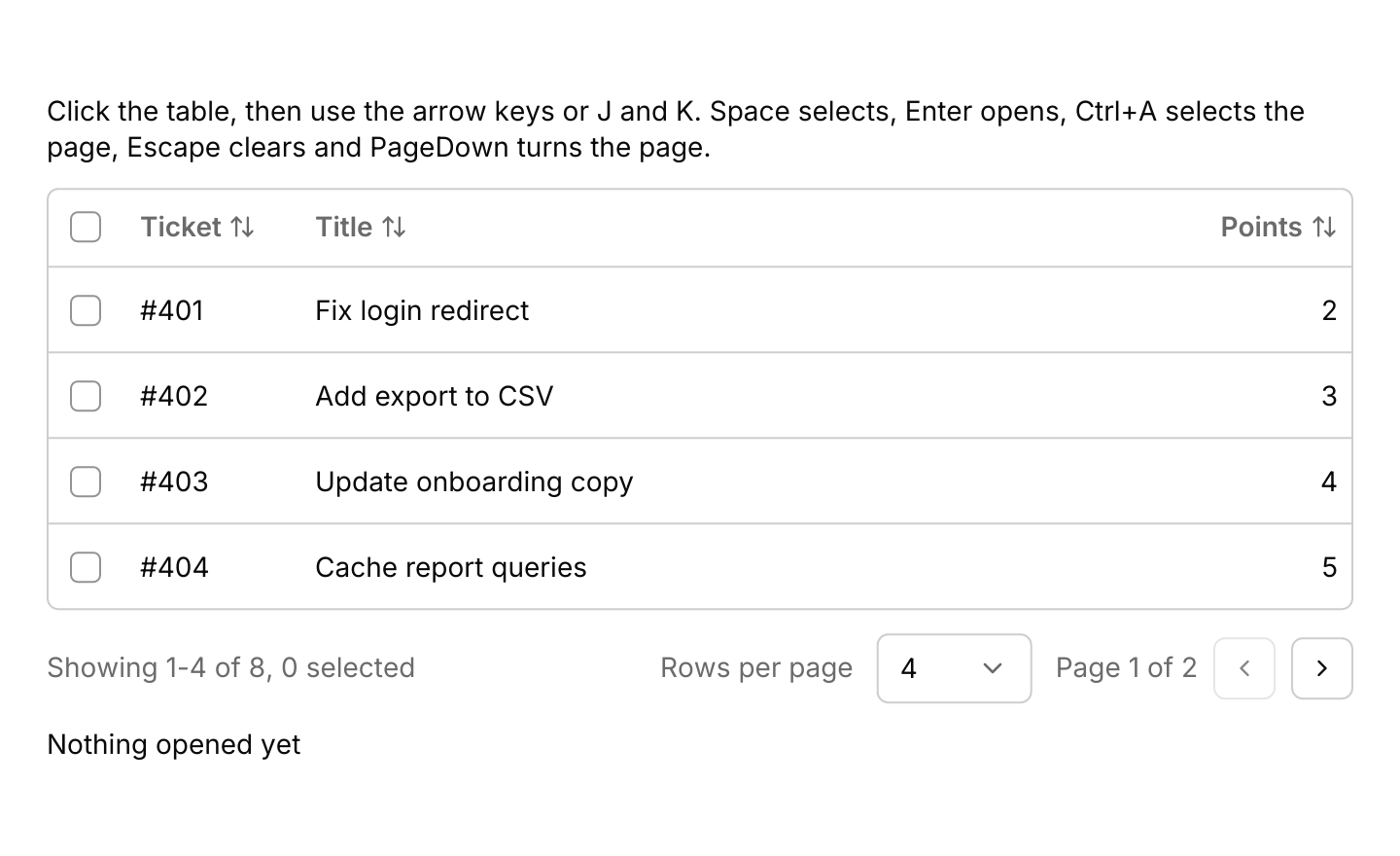
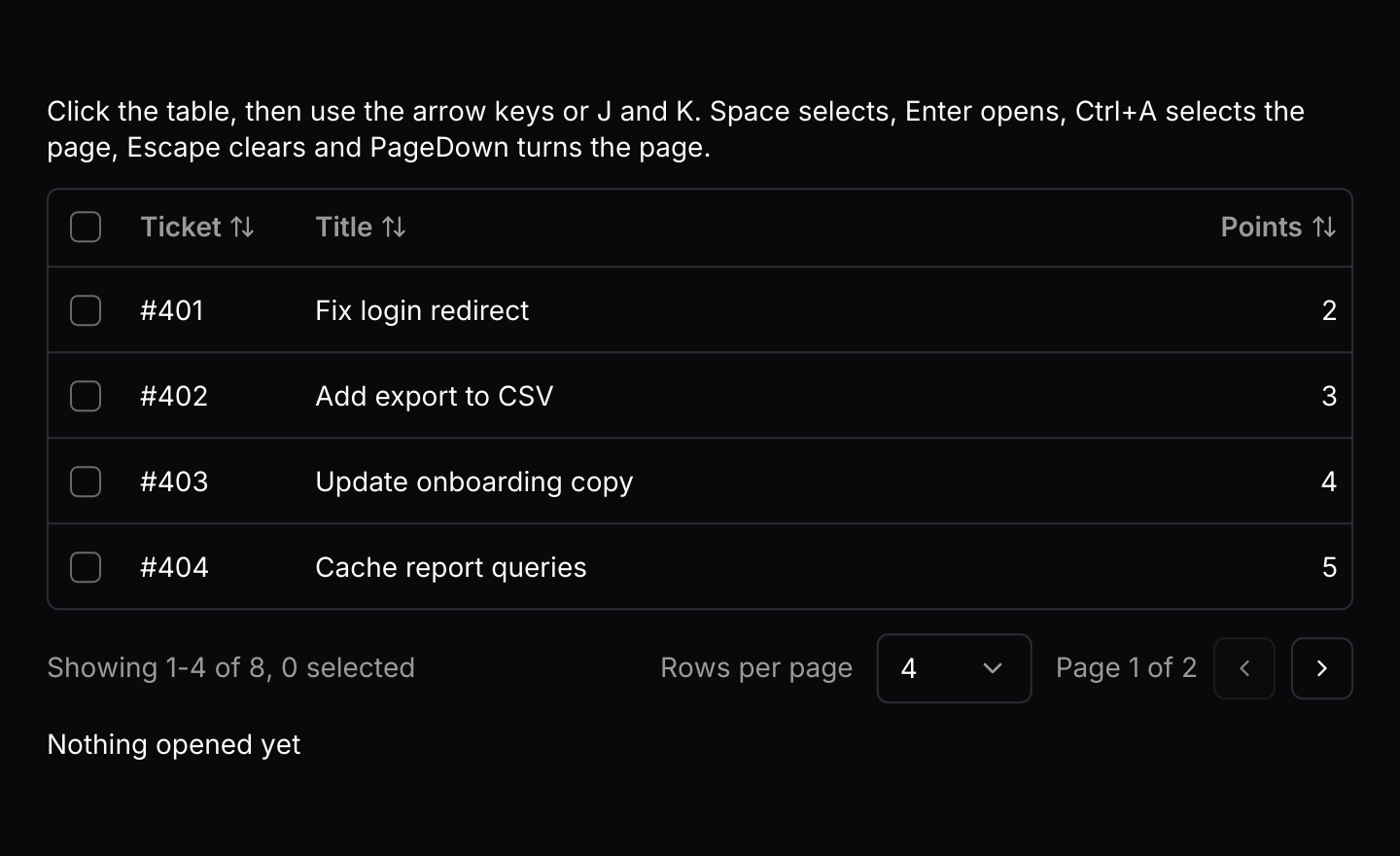
The default keymap with J and K added. The table resolves keys only while it has focus, and the highlight moves on to the next page after the last row.
use iced::widget::{column, text};
use iced::{Element, Length};
use iced_cube::data::data_table::{self, Action, Align, Event, Output, State, data_table};
use iced_cube::keys::{Chord, Keymap};

#[derive(Debug, Clone)]
pub struct Ticket {
    id: u32,
    title: &'static str,
    points: u32,
}

const TITLES: [&str; 8] = [
    "Fix login redirect",
    "Add export to CSV",
    "Update onboarding copy",
    "Cache report queries",
    "Retry failed webhooks",
    "Dark mode for emails",
    "Audit log filters",
    "Remove legacy flags",
];

#[derive(Debug, Clone)]
pub enum Message {
    Tickets(Event<u32>),
}

#[derive(Debug)]
pub struct Example {
    tickets: State<Ticket, u32>,
    keymap: Keymap<Action>,
    last: String,
}

impl Default for Example {
    fn default() -> Self {
        let columns = [
            data_table::column("id", "Ticket", |t: &Ticket| t.id.into())
                .width(90)
                .format(|t| format!("#{}", t.id)),
            data_table::column("title", "Title", |t: &Ticket| t.title.into())
                .width(Length::FillPortion(3)),
            data_table::column("points", "Points", |t: &Ticket| t.points.into()).align(Align::End),
        ];
        let rows = TITLES.iter().zip(1_u32..).map(|(&title, n)| Ticket {
            id: 400 + n,
            title,
            points: n % 5 + 1,
        });
        let mut tickets = State::new(columns, rows, |t| t.id)
            .with_selection(true)
            .with_page_sizes([4, 8]);
        let _ = tickets.update(Event::Press(402));

        // The defaults, plus J and K.
        let keymap = data_table::default_keymap()
            .bind(Chord::character('j'), Action::Next)
            .bind(Chord::character('k'), Action::Previous);

        Self {
            tickets,
            keymap,
            last: "Nothing opened yet".into(),
        }
    }
}

impl Example {
    pub fn update(&mut self, message: Message) {
        match message {
            Message::Tickets(event) => {
                if let Some(Output::Activated(id)) = self.tickets.update(event) {
                    self.last = format!("Opened #{id}");
                }
            }
        }
    }

    pub fn view(&self) -> Element<'_, Message> {
        column![
            text(
                "Click the table, then use the arrow keys or J and K. Space selects, Enter \
                 opens, Ctrl+A selects the page, Escape clears and PageDown turns the page."
            )
            .size(14),
            data_table(&self.tickets)
                .toolbar(false)
                .keymap(self.keymap.clone())
                .on_event(Message::Tickets),
            text(&self.last).size(14),
        ]
        .spacing(12)
        .into()
    }
}API
| Item | Description |
|---|---|
State:: | Holds your own row type, the columns that read it, and a key function giving each row an identity that survives sorting, such as its id. |
data_table:: | A sortable, searchable and hideable column. value reads a Value (text, a number or empty) from a row. Add .width(length), .align(Align::End), .format(fn) for the text shown, .filterable(true) for a filter of its values, .sortable(false), .hideable(false) or .searchable(false). |
.with_selection(bool) / .with_page_sizes(sizes) / .with_sort(id, direction) / .with_hidden(ids) | Row checkboxes, the page sizes offered (the first is used), a starting sort and columns hidden to start with. |
state.update(Event) | Handles sorting, searching, filters, pages, selection, the keyboard and the Columns menu. Returns Output::Activated(key) or Output::Selected(keys). |
state.page_rows() / state.selected() / state.highlighted() | The rows on the current page, every selected key in row order, and the row the keyboard acts on. |
state.set_rows(rows) / state.push(row) / state.update_row(&key, f) / state.retain(f) | Changes the rows. The sort, filters and the selection of rows that remain are kept. |
state.showing() / state.page() / state.page_count() / state.filtered_len() | The footer text, such as "Showing 1-10 of 243", and the numbers behind it. |
data_table(&state) | Renders the toolbar, the table and the footer. Controls render disabled until .on_event is set. |
.cell(id, f) | Draws a column's cells with your own element, such as a badge or a progress bar. |
.toolbar(bool) / .placeholder(text) | Shows or hides the search box, column filters and Columns menu, and sets the search placeholder. |
.loading(bool) / .empty(text) | Placeholder rows while loading, and the message when nothing matches. |
.height(length) / .row_height(f32) | A fixed or filling height scrolls the rows under a header that stays put. Rows are 44 pixels tall unless set, such as 32 for a compact table. |
.breakpoint(width) | Below this width the rows become cards. Defaults to 560. |
.context_menu(&menu, f) / .row_actions(bool) | Gives every row the same context menu, keyed by row key, and a button at the end of each row that opens it. |
.keymap(keymap) / .context_menu_keymap(keymap) | Replaces the table's or the context menu's default keymap. |
data_table:: | The default shortcuts, and the Event a resolved Action sends. State::key_event does both. |
data_table:: | The row colours: muted when selected, lighter under the pointer and a ring for the keyboard highlight. |
Keyboard
Default shortcuts. Every one can be changed or removed with a keymap; see Keyboard shortcuts.
| Keys | Action |
|---|---|
| ArrowDown | Next Highlights the next row, going on to the next page after the last. |
| ArrowUp | Previous Highlights the previous row, going back a page before the first. |
| Home | First Highlights the first row on the page. |
| End | Last Highlights the last row on the page. |
| PageDown | NextPage Shows the next page. |
| PageUp | PreviousPage Shows the previous page. |
| Space | Select Selects or clears the highlighted row. |
| Enter | Activate Activates the highlighted row. |
| Ctrl+A | SelectAll Selects every row on the page. |
| Escape | ClearSelection Clears the selection. |