Actions
Toggle group
A row of toggles where one, or several, can be on.


use iced::widget::{column, text};
use iced::{Element, Length};
use iced_cube::lucide;
use iced_cube::primitives::toggle_group::{self, State, Variant, item, toggle_group};

#[derive(Debug, Clone, Copy, PartialEq, Eq)]
pub enum Align {
    Left,
    Centre,
    Right,
}

#[derive(Debug, Clone)]
pub enum Message {
    Align(toggle_group::Event<Align>),
}

#[derive(Debug)]
pub struct Example {
    align: State<Align>,
}

impl Default for Example {
    fn default() -> Self {
        let align = State::single([
            item(Align::Left, "Left").icon(lucide!(TextAlignStart)),
            item(Align::Centre, "Centre").icon(lucide!(TextAlignCenter)),
            item(Align::Right, "Right").icon(lucide!(TextAlignEnd)),
        ]);
        Self {
            align: align.required(true),
        }
    }
}

impl Example {
    pub fn update(&mut self, message: Message) {
        let Message::Align(event) = message;
        let _ = self.align.update(event);
    }

    pub fn view(&self) -> Element<'_, Message> {
        let align = self
            .align
            .selected_one()
            .map_or(String::new(), |align| format!("Text aligned: {align:?}"));

        column![
            toggle_group(&self.align)
                .variant(Variant::Outline)
                .on_event(Message::Align),
            text(align).size(14),
        ]
        .spacing(12)
        .width(Length::Fill)
        .max_width(320)
        .into()
    }
}Usage
The app owns a toggle_group::State and routes events into it, as with tabs. In single mode pressing an item turns the others off; pressing the one that is on turns it off too, unless the group is .required(true), which suits a choice that always has an answer, such as text alignment or a date range.
Multiple mode suits formatting options and filters, where each item is independent. selected() returns the items that are on in the order they are shown, whatever order they were pressed in.
Separate toggles wrap onto new lines on a narrow screen. An outlined group stays in one row, so keep it to two to four short items.
Use a single-choice group for a few short options shown side by side, and a select when there are more than four or five. When the options switch between whole views rather than settings, tabs are the clearer choice.
The arrow keys are bound by default because a single-choice group behaves like tabs. They are app-wide, so an app showing tabs, a slider or another group on the same screen should rebind one of them.
Examples
Multiple choice
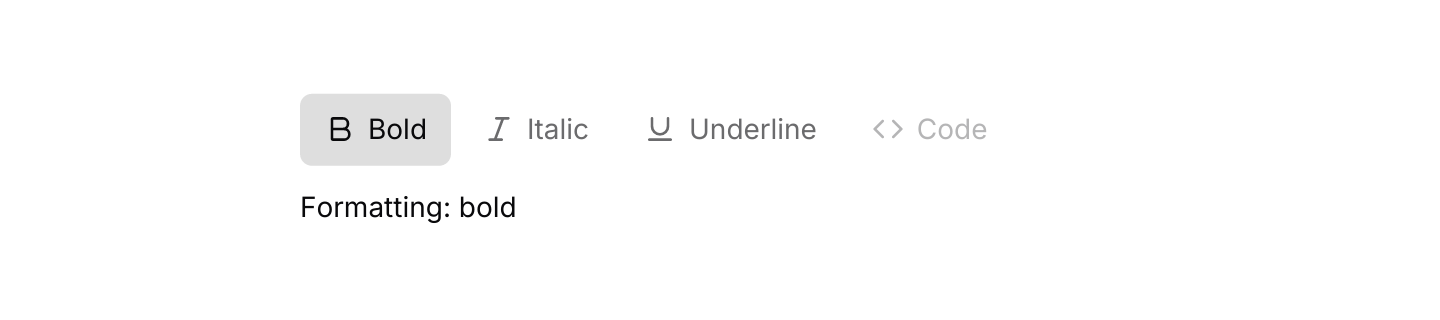
Formatting toggles that switch on and off independently, with a disabled item.

use iced::widget::{column, text};
use iced::{Element, Length};
use iced_cube::lucide;
use iced_cube::primitives::toggle_group::{self, State, item, toggle_group};

#[derive(Debug, Clone, Copy, PartialEq, Eq)]
pub enum Format {
    Bold,
    Italic,
    Underline,
    Code,
}

#[derive(Debug, Clone)]
pub enum Message {
    Format(toggle_group::Event<Format>),
}

#[derive(Debug)]
pub struct Example {
    format: State<Format>,
}

impl Default for Example {
    fn default() -> Self {
        let format = State::multiple([
            item(Format::Bold, "Bold").icon(lucide!(Bold)),
            item(Format::Italic, "Italic").icon(lucide!(Italic)),
            item(Format::Underline, "Underline").icon(lucide!(Underline)),
            item(Format::Code, "Code")
                .icon(lucide!(Code))
                .disabled(true),
        ]);
        Self {
            format: format.with_selected([Format::Bold]),
        }
    }
}

impl Example {
    pub fn update(&mut self, message: Message) {
        let Message::Format(event) = message;
        let _ = self.format.update(event);
    }

    pub fn view(&self) -> Element<'_, Message> {
        let on: Vec<String> = self
            .format
            .selected()
            .iter()
            .map(|format| format!("{format:?}").to_lowercase())
            .collect();
        let status = match on.as_slice() {
            [] => String::from("Plain text"),
            names => format!("Formatting: {}", names.join(", ")),
        };

        column![
            toggle_group(&self.format).on_event(Message::Format),
            text(status).size(14),
        ]
        .spacing(12)
        .width(Length::Fill)
        .max_width(420)
        .into()
    }
}Keyboard shortcuts
The arrow keys move a single-choice group's selection through the default keymap.


use iced::widget::{column, text};
use iced::{Element, Length, Subscription};
use iced_cube::keys::{self, Keymap};
use iced_cube::primitives::toggle_group::{
    self, Action, Event, State, Variant, item, toggle_group,
};

#[derive(Debug, Clone, Copy, PartialEq, Eq)]
pub enum Range {
    Day,
    Week,
    Month,
    Year,
}

#[derive(Debug, Clone)]
pub enum Message {
    Range(Event<Range>),
    Key(keys::Event),
}

#[derive(Debug)]
pub struct Example {
    range: State<Range>,
    keymap: Keymap<Action>,
}

impl Default for Example {
    fn default() -> Self {
        let range = State::single([
            item(Range::Day, "Day"),
            item(Range::Week, "Week"),
            item(Range::Month, "Month"),
            item(Range::Year, "Year"),
        ]);
        Self {
            range: range.with_selected([Range::Week]).required(true),
            keymap: toggle_group::default_keymap(),
        }
    }
}

impl Example {
    pub fn update(&mut self, message: Message) {
        let event = match message {
            Message::Range(event) => Some(event),
            Message::Key(key) => self
                .keymap
                .resolve_event(&key)
                .and_then(|action| action.event(&self.range)),
        };
        if let Some(event) = event {
            let _ = self.range.update(event);
        }
    }

    pub fn view(&self) -> Element<'_, Message> {
        column![
            toggle_group(&self.range)
                .variant(Variant::Outline)
                .on_event(Message::Range),
            text("The left and right arrow keys move the selection.").size(14),
        ]
        .spacing(12)
        .width(Length::Fill)
        .max_width(360)
        .into()
    }

    pub fn subscription(&self) -> Subscription<Message> {
        keys::subscription().map(Message::Key)
    }
}API
| Item | Description |
|---|---|
State:: | Holds the items, with nothing on. Single mode keeps at most one item on; multiple mode switches each one by itself. |
.required(true) | Single mode only: the last item on stays on, and the first enabled item starts on when nothing else is. |
.with_selected(ids) | Switches these items on, skipping unknown and disabled ones. In single mode the first that applies replaces the selection. |
item(id, label) | Creates an item. Add .icon(glyph) or .disabled(true). |
state.update(Event) | Toggle(id), Next or Previous. Returns the ids that are on, if anything changed. |
state.selected() / state.selected_one() / state.is_selected(id) | The ids that are on in item order, the first of them, and a check for one id. |
state.set_disabled(id, bool) | Enables or disables an item at runtime. Whether it is on stays as it was. |
toggle_group(&state) | Renders the items. They render disabled until .on_event is set. |
.variant(Variant) | Default, separate toggles with a small gap, or Outline, attached segments inside one border. Defaults to Default. |
.size(Size) | The toggle Size: Sm, Md or Lg. Defaults to Md. |
.on_event(f) | Maps item events to your message, such as Message::Group. |
toggle_group:: | The default shortcuts as a Keymap<Action>. Bind, unbind or clear chords to change them. |
action.event(&state) | Turns a resolved Action (Next or Previous) into the Event to pass to state.update. Multiple-mode groups get None. |
Keyboard
Default shortcuts. Every one can be changed or removed with a keymap; see Keyboard shortcuts.
| Keys | Action |
|---|---|
| ArrowRight | Next Turns on the next enabled item of a single-choice group, wrapping. |
| ArrowLeft | Previous Turns on the previous enabled item of a single-choice group, wrapping. |