Navigation
Document tabs
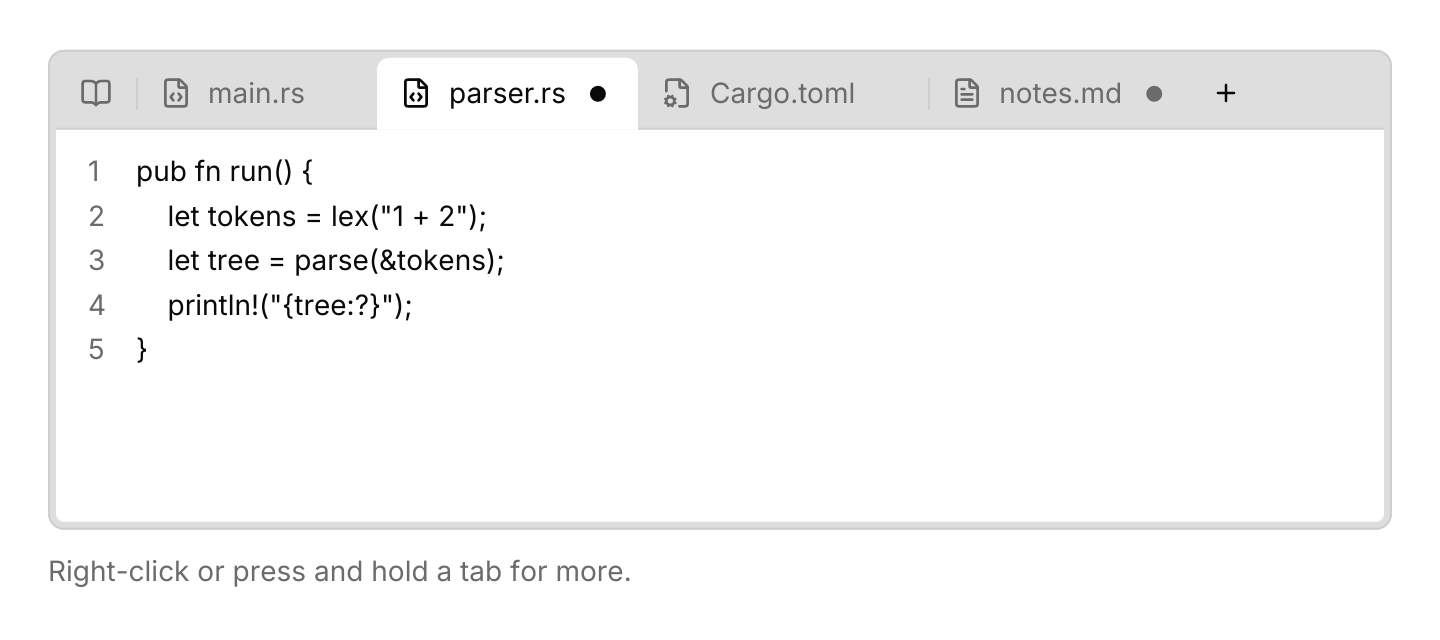
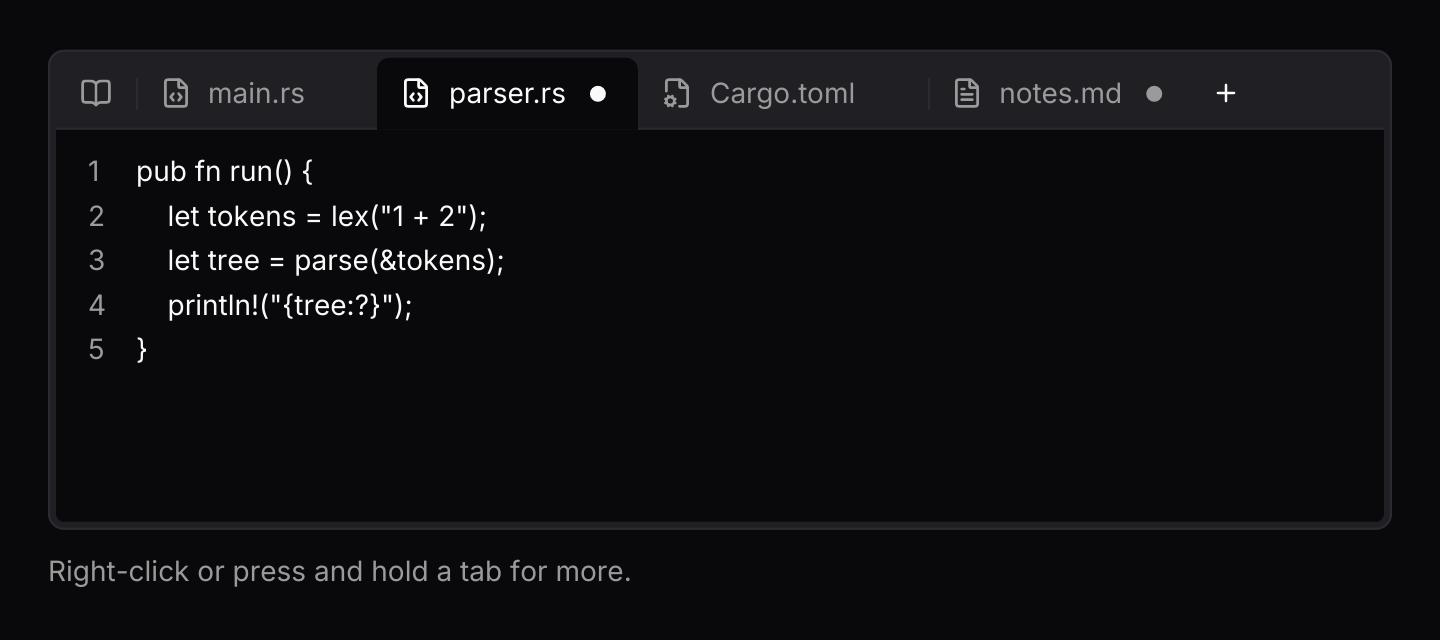
A strip of open documents above an editor, with unsaved changes, pinning, reordering and a menu for tabs that do not fit.
use iced::widget::{column, container, row, text};
use iced::{Border, Element, Length, Theme, border};
use iced_cube::lucide;
use iced_cube::navigation::document_tabs::{
    Event, MenuItem, Output, State, document, document_tabs,
};
use iced_cube::overlay::dropdown_menu::item;
use iced_cube::theme::{Tokens, radius, text_size};

const COPY_PATH: MenuItem = MenuItem::Custom("copy-path");

#[derive(Debug, Clone)]
pub enum Message {
    Tabs(Event<u32>),
}

#[derive(Debug)]
pub struct Example {
    tabs: State<u32>,
    next: u32,
    status: String,
}

impl Default for Example {
    fn default() -> Self {
        let tabs = State::new([
            document(1, "README.md")
                .icon(lucide!(BookOpen))
                .pinned(true),
            document(2, "main.rs").icon(lucide!(FileCode)),
            document(3, "parser.rs")
                .icon(lucide!(FileCode))
                .modified(true),
            document(4, "Cargo.toml").icon(lucide!(FileCog)),
            document(5, "notes.md")
                .icon(lucide!(FileText))
                .modified(true),
        ])
        .with_active(3)
        .with_menu_items([item(COPY_PATH, "Copy path")]);

        Self {
            tabs,
            next: 6,
            status: "Right-click or press and hold a tab for more.".into(),
        }
    }
}

impl Example {
    pub fn update(&mut self, message: Message) {
        let Message::Tabs(event) = message;
        match self.tabs.update(event) {
            Some(Output::CloseRequested(ids)) => {
                let _ = self.tabs.close(&ids);
            }
            Some(Output::NewTab) => {
                let label = format!("untitled-{}.md", self.next);
                self.tabs
                    .open(document(self.next, label).icon(lucide!(FileText)));
                self.next += 1;
            }
            Some(Output::Custom(_, id)) => {
                let label = self.tabs.document(id).map_or("", |doc| doc.label.as_str());
                self.status = format!("Copied src/{label}");
            }
            _ => {}
        }
    }

    pub fn view(&self) -> Element<'_, Message> {
        let lines = self.tabs.active().map_or(&[][..], contents);
        let numbered = lines.iter().enumerate().map(|(index, line)| {
            row![
                text(index + 1).size(text_size::SM).width(24).style(muted),
                text(*line).size(text_size::SM),
            ]
            .into()
        });
        let editor = container(column(numbered).spacing(4))
            .padding([12, 16])
            .width(Length::Fill)
            .height(Length::Fill)
            .style(page);

        let frame = column![
            document_tabs(&self.tabs)
                .new_tab(true)
                .on_event(Message::Tabs),
            editor,
        ];

        column![
            container(frame)
                .padding([4, 4])
                .width(Length::Fill)
                .height(240)
                .style(window),
            text(&self.status).size(text_size::SM).style(muted),
        ]
        .spacing(12)
        .into()
    }
}

fn contents(id: u32) -> &'static [&'static str] {
    match id {
        1 => &["# Parser", "", "A small expression parser."],
        2 => &["mod parser;", "", "fn main() {", "    parser::run();", "}"],
        3 => &[
            "pub fn run() {",
            "    let tokens = lex(\"1 + 2\");",
            "    let tree = parse(&tokens);",
            "    println!(\"{tree:?}\");",
            "}",
        ],
        4 => &["[package]", "name = \"parser\"", "edition = \"2024\""],
        5 => &["Handle unary minus.", "Report the column of errors."],
        _ => &[""],
    }
}

fn window(theme: &Theme) -> container::Style {
    let tokens = Tokens::of(theme);
    container::Style {
        background: Some(tokens.muted.into()),
        border: Border {
            color: tokens.border,
            width: 1.0,
            radius: radius::LG.into(),
        },
        ..container::Style::default()
    }
}

fn page(theme: &Theme) -> container::Style {
    container::Style {
        background: Some(Tokens::of(theme).background.into()),
        border: border::rounded(border::bottom(radius::SM)),
        ..container::Style::default()
    }
}

fn muted(theme: &Theme) -> text::Style {
    text::Style {
        color: Some(Tokens::of(theme).muted_foreground),
    }
}Usage
Document tabs are the strip of open files above an editor. The app owns a document_tabs::State with the documents in order and routes the strip’s events into it. The strip only switches between documents: the app renders the active one below it, and the active tab takes the page background so it joins that content.
Closing never happens by itself. The close button, a middle click, Ctrl+W and the context menu all return Output::CloseRequested with the ids to close, so the app can save, or ask with an alert dialog when a document has unsaved changes, before it calls state.close(&ids). The confirmation example shows the pattern.
Each tab reserves a slot after its label. The active tab shows its close button there, other tabs show it on hover, and a document with unsaved changes shows a dot that turns into the close button under the pointer, so the label never moves. Pinned tabs sit before the others, show only their icon (or a short label when they have none), have no close button, and are left alone by Close others, Close to the right, Close saved and Close all. Dragging a tab moves it, with a line marking where it will land, and a pinned tab only moves among pinned tabs.
A tab’s context menu only lists what would do something on it, and never two close items that would close exactly the same tabs; Close and Close all are kept over the others. So Close saved, which closes the tabs without unsaved changes, appears only while some of those tabs have unsaved changes and some do not. A finger activates a tab when it lifts without having moved, so swiping the strip or holding a tab for its menu never switches tabs. For a document the app always keeps open, such as a list the other tabs are opened from, use .pinned(true).closable(false).locked(true): it then has no close button, no Close, Pin or Unpin item, and no close gesture or shortcut asks to close it.
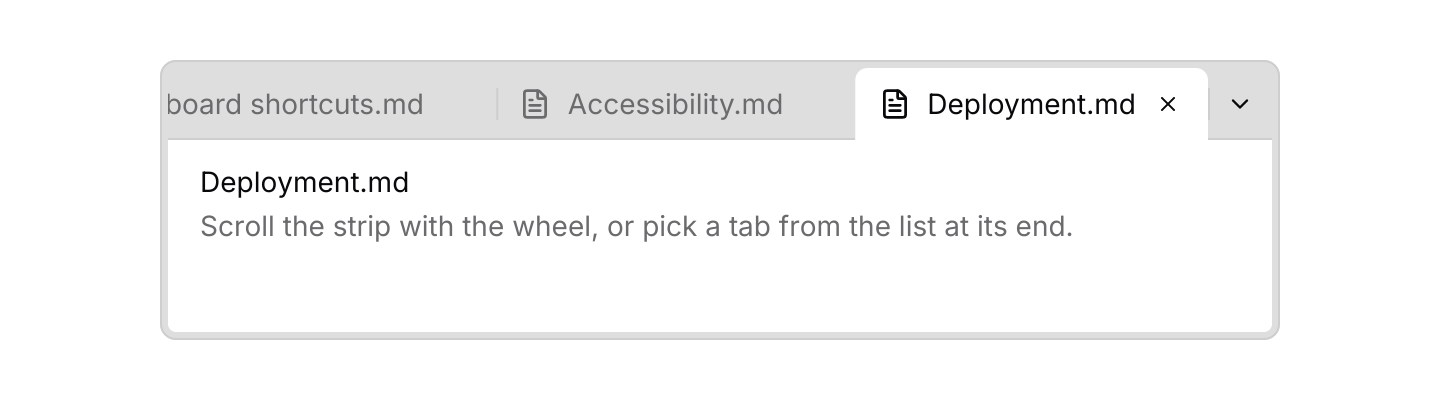
When the tabs do not fit, the pinned tabs stay at the start of the strip and only the others scroll sideways, with the wheel or a finger, in the room after them. A button at the end of the strip lists every tab. When pinned tabs would take more than half that room, they scroll with the others instead, so a narrow window always has room to show the active tab. The strip keeps the active tab in view when it first appears, when the active tab changes and when the window is resized. The list opens below its button, marks the active tab and scrolls to it. Labels stay on one line, in the strip and in the list, and end in an ellipsis when they do not fit. A tab’s context menu opens below the tab, whether from a right-click, a long press or the keyboard, and scrolls when the window is too short for it.
Ctrl+Tab walks the documents in the order they were last used, as editors do: each press goes one further back until Ctrl is released, which the app learns from document_tabs::cycle_end(). Ctrl+PageDown and Ctrl+PageUp move through the strip in order. The segmented tabs also bind Ctrl+Tab and Ctrl+Shift+Tab, so an app showing both should unbind them from one of them, usually the segmented tabs. Browsers keep these chords for their own tabs, which is why the keyboard example adds chords such as Ctrl+] that reach the page.
Action::OpenMenu, which opens the active tab’s context menu, has no default chord. The strip never has keyboard focus, so an app-wide Shift+F10 would also open any other context menu on screen. Bind it with default_keymap().bind(Chord::named(Named::F10).shift(), Action::OpenMenu) when the tab strip is the only context menu, or resolve it only while the editor has focus. See Keyboard shortcuts for how components share keys.
Examples
Many tabs
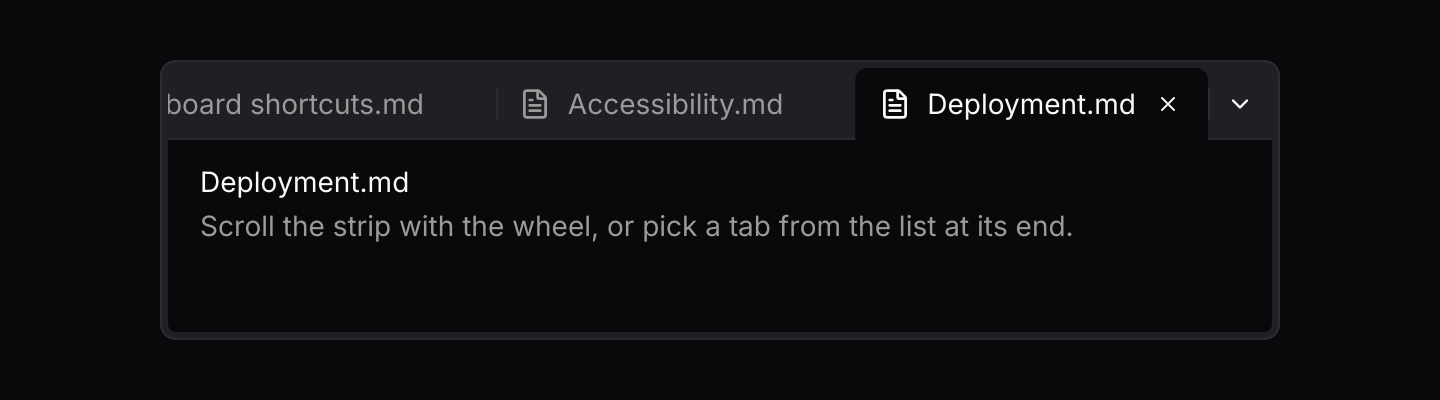
Tabs that do not fit scroll sideways, keeping the active one in view, and a button at the end lists them all.
use iced::widget::{column, container, text};
use iced::{Border, Element, Length, Theme, border};
use iced_cube::lucide;
use iced_cube::navigation::document_tabs::{Event, Output, State, document, document_tabs};
use iced_cube::theme::{Tokens, radius, text_size};

const CHAPTERS: [&str; 12] = [
    "Introduction",
    "Getting started",
    "Installation",
    "Configuration",
    "Command line",
    "Plugins",
    "Theming",
    "Keyboard shortcuts",
    "Accessibility",
    "Deployment",
    "Troubleshooting",
    "Release notes",
];

#[derive(Debug, Clone)]
pub enum Message {
    Tabs(Event<usize>),
}

#[derive(Debug)]
pub struct Example {
    tabs: State<usize>,
}

impl Default for Example {
    fn default() -> Self {
        let documents = CHAPTERS.iter().enumerate().map(|(index, title)| {
            document(index, format!("{title}.md"))
                .icon(lucide!(FileText))
                .modified(index == 4)
        });
        Self {
            tabs: State::new(documents).with_active(9),
        }
    }
}

impl Example {
    pub fn update(&mut self, message: Message) {
        let Message::Tabs(event) = message;
        if let Some(Output::CloseRequested(ids)) = self.tabs.update(event) {
            let _ = self.tabs.close(&ids);
        }
    }

    pub fn view(&self) -> Element<'_, Message> {
        let title = self
            .tabs
            .active()
            .and_then(|id| self.tabs.document(id))
            .map_or("", |doc| doc.label.as_str());
        let page = container(
            column![
                text(title).size(text_size::SM),
                text("Scroll the strip with the wheel, or pick a tab from the list at its end.")
                    .size(text_size::SM)
                    .style(muted),
            ]
            .spacing(4),
        )
        .padding([12, 16])
        .width(Length::Fill)
        .height(Length::Fill)
        .style(page);

        container(column![
            document_tabs(&self.tabs).on_event(Message::Tabs),
            page
        ])
        .padding(4)
        .width(Length::Fill)
        .max_width(560)
        .height(140)
        .style(window)
        .into()
    }
}

fn window(theme: &Theme) -> container::Style {
    let tokens = Tokens::of(theme);
    container::Style {
        background: Some(tokens.muted.into()),
        border: Border {
            color: tokens.border,
            width: 1.0,
            radius: radius::LG.into(),
        },
        ..container::Style::default()
    }
}

fn page(theme: &Theme) -> container::Style {
    container::Style {
        background: Some(Tokens::of(theme).background.into()),
        border: border::rounded(border::bottom(radius::SM)),
        ..container::Style::default()
    }
}

fn muted(theme: &Theme) -> text::Style {
    text::Style {
        color: Some(Tokens::of(theme).muted_foreground),
    }
}Confirm before closing
Closing only asks. The app checks for unsaved changes, confirms with an alert dialog, then closes the tabs itself.
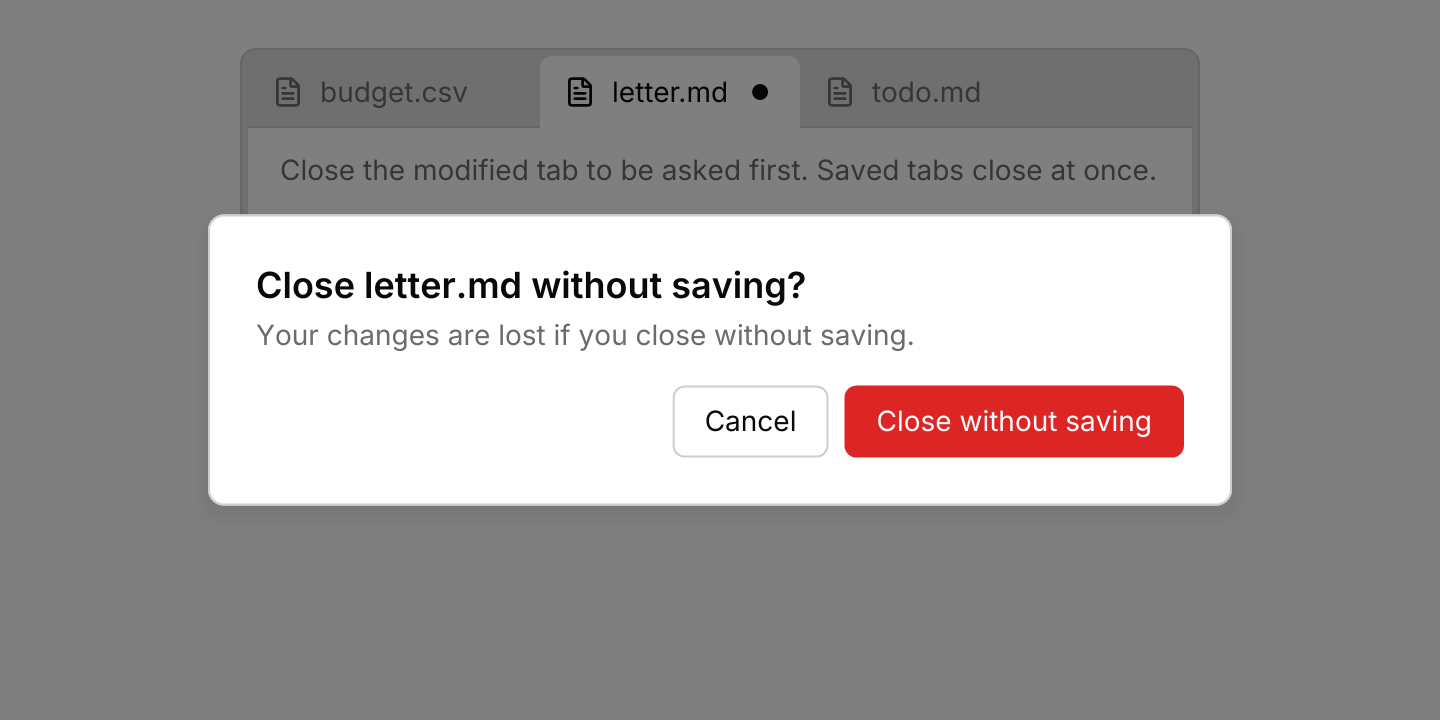
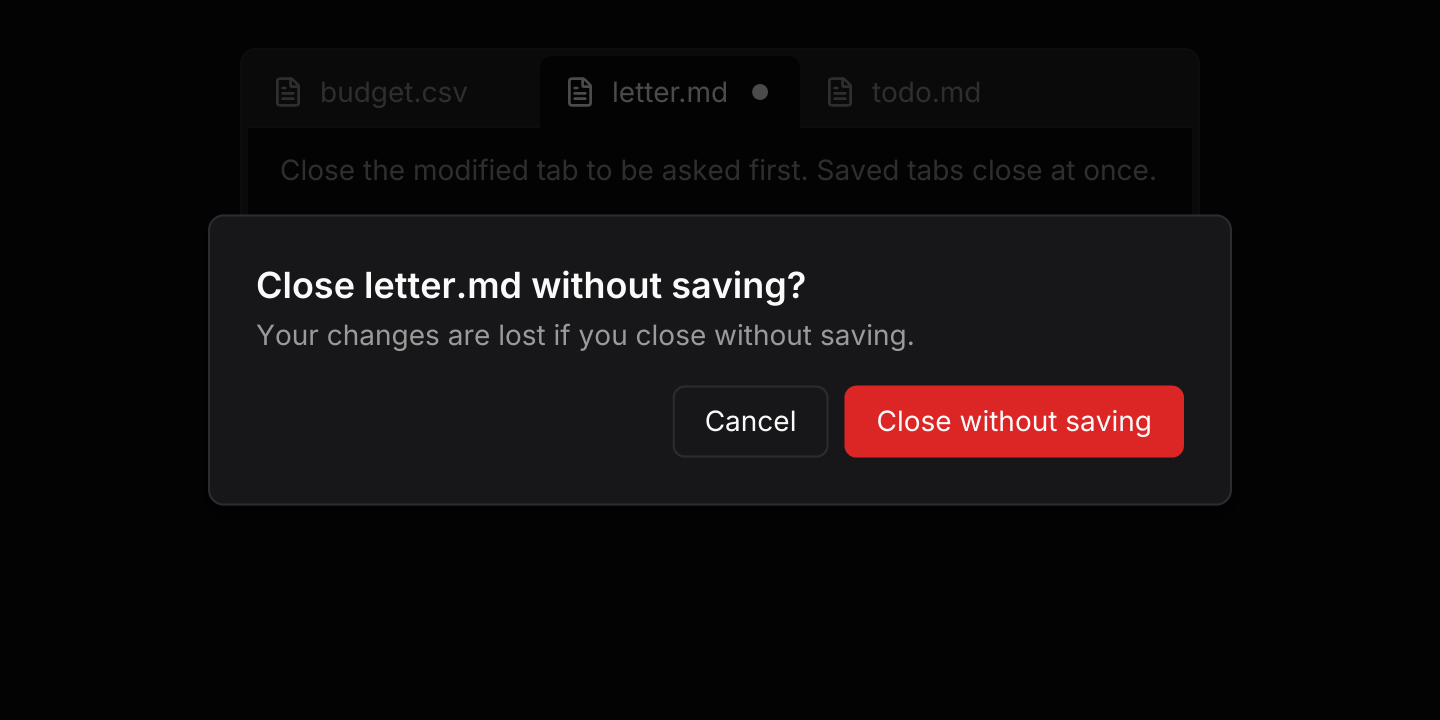
use iced::widget::{column, container, text};
use iced::{Border, Element, Length, Theme, border};
use iced_cube::alert_dialog;
use iced_cube::lucide;
use iced_cube::navigation::document_tabs::{Event, Output, State, document, document_tabs};
use iced_cube::theme::{Tokens, radius, text_size};

#[derive(Debug, Clone)]
pub enum Message {
    Tabs(Event<u32>),
    Discard,
    Cancel,
}

#[derive(Debug)]
pub struct Example {
    tabs: State<u32>,
    /// Documents waiting to close while the user decides about unsaved ones.
    pending: Vec<u32>,
}

impl Default for Example {
    fn default() -> Self {
        Self {
            tabs: State::new([
                document(1, "budget.csv").icon(lucide!(FileText)),
                document(2, "letter.md")
                    .icon(lucide!(FileText))
                    .modified(true),
                document(3, "todo.md").icon(lucide!(FileText)),
            ])
            .with_active(2),
            pending: vec![2],
        }
    }
}

impl Example {
    pub fn update(&mut self, message: Message) {
        match message {
            Message::Tabs(event) => {
                let Some(Output::CloseRequested(ids)) = self.tabs.update(event) else {
                    return;
                };
                if self.unsaved(&ids).is_empty() {
                    let _ = self.tabs.close(&ids);
                } else {
                    self.pending = ids;
                }
            }
            Message::Discard => {
                let _ = self.tabs.close(&self.pending);
                self.pending.clear();
            }
            Message::Cancel => self.pending.clear(),
        }
    }

    fn unsaved(&self, ids: &[u32]) -> Vec<&str> {
        ids.iter()
            .filter_map(|id| self.tabs.document(*id))
            .filter(|doc| doc.modified)
            .map(|doc| doc.label.as_str())
            .collect()
    }

    pub fn view(&self) -> Element<'_, Message> {
        let page = container(
            text("Close the modified tab to be asked first. Saved tabs close at once.")
                .size(text_size::SM)
                .style(muted),
        )
        .padding([12, 16])
        .width(Length::Fill)
        .height(Length::Fill)
        .style(page);

        let editor = container(column![
            document_tabs(&self.tabs).on_event(Message::Tabs),
            page
        ])
        .padding(4)
        .width(Length::Fill)
        .max_width(480)
        .height(160)
        .style(window);

        let unsaved = self.unsaved(&self.pending).join(", ");
        alert_dialog(
            container(editor).padding(24).center_x(Length::Fill),
            format!("Close {unsaved} without saving?"),
            "Your changes are lost if you close without saving.",
        )
        .open(!self.pending.is_empty())
        .confirm("Close without saving")
        .on_cancel(Message::Cancel)
        .on_confirm(Message::Discard)
        .into()
    }
}

fn window(theme: &Theme) -> container::Style {
    let tokens = Tokens::of(theme);
    container::Style {
        background: Some(tokens.muted.into()),
        border: Border {
            color: tokens.border,
            width: 1.0,
            radius: radius::LG.into(),
        },
        ..container::Style::default()
    }
}

fn page(theme: &Theme) -> container::Style {
    container::Style {
        background: Some(Tokens::of(theme).background.into()),
        border: border::rounded(border::bottom(radius::SM)),
        ..container::Style::default()
    }
}

fn muted(theme: &Theme) -> text::Style {
    text::Style {
        color: Some(Tokens::of(theme).muted_foreground),
    }
}Keyboard shortcuts
The default keymap with extra chords that reach a web page, since browsers keep Ctrl+Tab, Ctrl+W and Ctrl+PageDown for themselves. Closing a modified tab asks first. Releasing every modifier ends a walk through recent tabs.
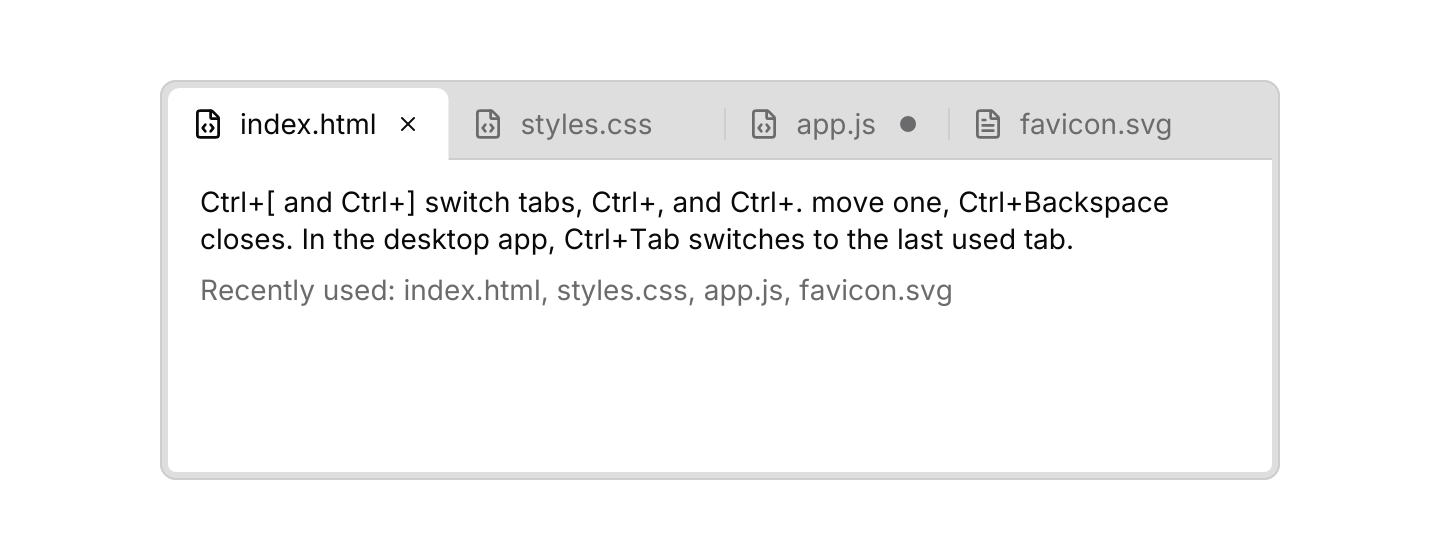
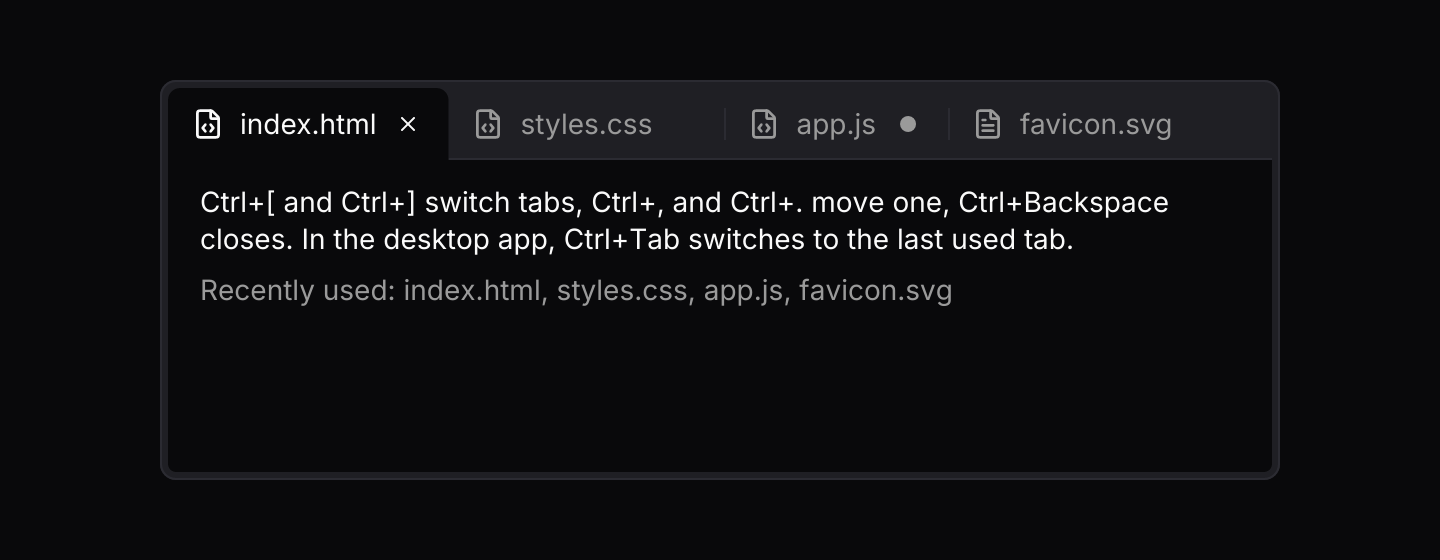
use iced::keyboard::key::Named;
use iced::widget::{column, container, row, text};
use iced::{Border, Element, Length, Subscription, Theme, border};
use iced_cube::button;
use iced_cube::keys::{self, Chord, Keymap};
use iced_cube::lucide;
use iced_cube::navigation::document_tabs::{
    self, Action, Event, Output, State, document, document_tabs,
};
use iced_cube::primitives::button::{Size, Variant};
use iced_cube::theme::{Tokens, radius, text_size};

#[derive(Debug, Clone)]
pub enum Message {
    Tabs(Event<u32>),
    Key(keys::Event),
    Discard,
    Cancel,
}

#[derive(Debug)]
pub struct Example {
    tabs: State<u32>,
    keymap: Keymap<Action>,
    /// Documents waiting to close while the user decides about unsaved ones.
    pending: Vec<u32>,
}

impl Default for Example {
    fn default() -> Self {
        // Browsers keep Ctrl+Tab, Ctrl+W and Ctrl+PageDown for their own
        // tabs, so the example adds chords that reach the page.
        let keymap = document_tabs::default_keymap()
            .bind(Chord::character(']').ctrl(), Action::Next)
            .bind(Chord::character('[').ctrl(), Action::Previous)
            .bind(Chord::character('.').ctrl(), Action::MoveRight)
            .bind(Chord::character(',').ctrl(), Action::MoveLeft)
            .bind(Chord::named(Named::Backspace).ctrl(), Action::Close);

        Self {
            tabs: State::new([
                document(1, "index.html").icon(lucide!(FileCode)),
                document(2, "styles.css").icon(lucide!(FileCode)),
                document(3, "app.js").icon(lucide!(FileCode)).modified(true),
                document(4, "favicon.svg").icon(lucide!(FileText)),
            ]),
            keymap,
            pending: Vec::new(),
        }
    }
}

impl Example {
    pub fn update(&mut self, message: Message) {
        let event = match message {
            Message::Tabs(event) => event,
            Message::Key(_) if !self.pending.is_empty() => return,
            Message::Key(key) => {
                let action = self.keymap.resolve_event(&key);
                let Some(event) = action.and_then(|action| action.event(&self.tabs)) else {
                    return;
                };
                event
            }
            Message::Discard => {
                let _ = self.tabs.close(&self.pending);
                self.pending.clear();
                return;
            }
            Message::Cancel => {
                self.pending.clear();
                return;
            }
        };
        let Some(Output::CloseRequested(ids)) = self.tabs.update(event) else {
            return;
        };
        if self.unsaved(&ids).is_empty() {
            let _ = self.tabs.close(&ids);
        } else {
            self.pending = ids;
        }
    }

    fn unsaved(&self, ids: &[u32]) -> Vec<&str> {
        ids.iter()
            .filter_map(|id| self.tabs.document(*id))
            .filter(|doc| doc.modified)
            .map(|doc| doc.label.as_str())
            .collect()
    }

    pub fn view(&self) -> Element<'_, Message> {
        let body: Element<'_, Message> = if self.pending.is_empty() {
            let recent: Vec<&str> = self
                .tabs
                .recent()
                .iter()
                .filter_map(|id| self.tabs.document(*id))
                .map(|doc| doc.label.as_str())
                .collect();
            column![
                text("Ctrl+[ and Ctrl+] switch tabs, Ctrl+, and Ctrl+. move one, Ctrl+Backspace closes. In the desktop app, Ctrl+Tab switches to the last used tab.")
                    .size(text_size::SM),
                text(format!("Recently used: {}", recent.join(", ")))
                    .size(text_size::SM)
                    .style(muted),
            ]
            .spacing(8)
            .into()
        } else {
            let unsaved = self.unsaved(&self.pending).join(", ");
            column![
                text(format!("Close {unsaved} without saving?")).size(text_size::SM),
                row![
                    button("Cancel")
                        .variant(Variant::Outline)
                        .size(Size::Sm)
                        .on_press(Message::Cancel),
                    button("Close without saving")
                        .variant(Variant::Destructive)
                        .size(Size::Sm)
                        .on_press(Message::Discard),
                ]
                .spacing(8)
                .wrap(),
            ]
            .spacing(12)
            .into()
        };
        let page = container(body)
            .padding([12, 16])
            .width(Length::Fill)
            .height(Length::Fill)
            .style(page);

        container(column![
            document_tabs(&self.tabs).on_event(Message::Tabs),
            page
        ])
        .padding(4)
        .width(Length::Fill)
        .max_width(560)
        .height(200)
        .style(window)
        .into()
    }

    pub fn subscription(&self) -> Subscription<Message> {
        Subscription::batch([
            keys::subscription().map(Message::Key),
            document_tabs::cycle_end().map(|end| Message::Tabs(end.into())),
        ])
    }
}

fn window(theme: &Theme) -> container::Style {
    let tokens = Tokens::of(theme);
    container::Style {
        background: Some(tokens.muted.into()),
        border: Border {
            color: tokens.border,
            width: 1.0,
            radius: radius::LG.into(),
        },
        ..container::Style::default()
    }
}

fn page(theme: &Theme) -> container::Style {
    container::Style {
        background: Some(Tokens::of(theme).background.into()),
        border: border::rounded(border::bottom(radius::SM)),
        ..container::Style::default()
    }
}

fn muted(theme: &Theme) -> text::Style {
    text::Style {
        color: Some(Tokens::of(theme).muted_foreground),
    }
}API
| Item | Description |
|---|---|
State:: | Opens the documents, pinned ones first, with the first one active. Ids must be unique. |
document(id, label) | A saved, unpinned document. Add .icon(glyph), .modified(true) or .pinned(true). |
.closable(false) | A document the user cannot close: no close button, no Close item, left out of Close others, Close to the right, Close saved and Close all, and Ctrl+W does nothing on it. |
.locked(true) | Keeps a document pinned or unpinned as it is: its menu has no Pin or Unpin item and Event::Pin leaves it alone. It still moves within its group. |
.with_active(id) / .with_menu_items(entries) | The document to start on, and app items added to every tab's context menu, built with dropdown_menu::item(MenuItem::Custom("name"), label). |
state.update(Event) | Activates, walks recent documents, moves, pins and drives both menus. Returns Output::Activated(id), CloseRequested(ids), Moved { id, from, to }, Pinned(id, bool), NewTab or Custom(name, id). |
state.close(&ids) | Closes documents. When the active one closes, the most recently used one left becomes active and is returned. |
state.open(document) | Activates a document, adding it at the end of its group when it is not open yet. |
state.set_modified(id, bool) / state.set_label(id, label) | Marks unsaved changes, or renames a tab. |
state.documents() / state.document(id) / state.active() / state.recent() | The documents in strip order, one document, the active id, and the ids most recently used first. |
document_tabs(&state) | Renders the strip. Tabs render disabled until .on_event is set. |
.new_tab(bool) | Shows a new tab button after the last tab, and lets a double click on the empty strip ask for a new document. |
.max_label_width(f32) | The widest a label grows before it ends in an ellipsis. Defaults to 200 pixels. |
.context_menu_keymap(keymap) / .overflow_keymap(keymap) | Replaces the default keymap of the open tab context menu or of the list of every tab. |
document_tabs:: | A subscription that reports when every modifier is released, which ends a walk through recent documents. Map it with Event::from. |
document_tabs:: | The default shortcuts, and the Event a resolved Action sends. |
document_tabs:: | The colours of one tab and of the strip behind it. |
Keyboard
Default shortcuts. Every one can be changed or removed with a keymap; see Keyboard shortcuts.
| Keys | Action |
|---|---|
| Ctrl+Tab | RecentNext Activates the previously used document. Pressed again while the modifier is held, goes further back. |
| Ctrl+Shift+Tab | RecentPrevious Walks the recently used documents the other way. |
| Ctrl+PageDown | Next Activates the tab to the right, wrapping at the end. |
| Ctrl+PageUp | Previous Activates the tab to the left, wrapping at the start. |
| Ctrl+Shift+PageUp | MoveLeft Moves the active tab one place left, within its group. |
| Ctrl+Shift+PageDown | MoveRight Moves the active tab one place right, within its group. |
| Ctrl+W | Close Asks to close the active document. |
| Ctrl+N | New Asks for a new document. |
| Ctrl+1 | Tab1 Activates the first tab. |
| Ctrl+2 | Tab2 Activates the second tab. |
| Ctrl+3 | Tab3 Activates the third tab. |
| Ctrl+4 | Tab4 Activates the fourth tab. |
| Ctrl+5 | Tab5 Activates the fifth tab. |
| Ctrl+6 | Tab6 Activates the sixth tab. |
| Ctrl+7 | Tab7 Activates the seventh tab. |
| Ctrl+8 | Tab8 Activates the eighth tab. |
| Ctrl+9 | LastTab Activates the last tab. |