Navigation
Sidebar
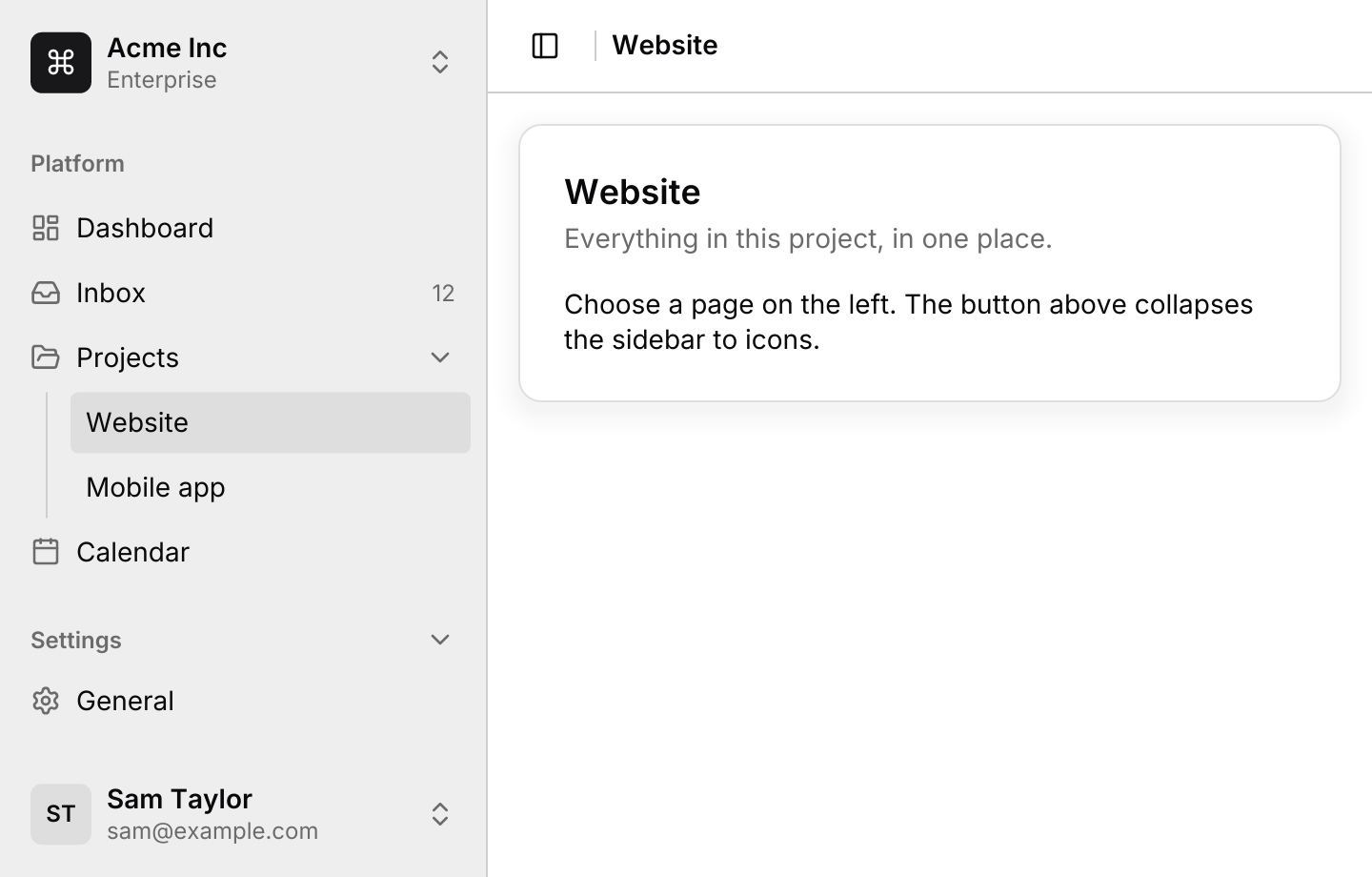
Persistent app navigation down one side of the window, which folds to an icon rail and becomes a drawer on small screens.
use iced::widget::{column, container, row, text};
use iced::{Alignment, Element, Length};
use iced_cube::dropdown_menu::{self, Output as MenuOutput, dropdown_menu};
use iced_cube::navigation::sidebar::{self, Event, State, group, item, menu_button, sidebar};
use iced_cube::overlay::anchored::Side;
use iced_cube::theme::{semibold, text_size};
use iced_cube::{card, lucide, separator, vertical_separator};

#[derive(Debug, Clone, Copy, PartialEq, Eq)]
pub enum Page {
    Dashboard,
    Inbox,
    Projects,
    Website,
    Mobile,
    Calendar,
    General,
    Billing,
    Team,
}

#[derive(Debug, Clone, Copy, PartialEq, Eq)]
pub enum Workspace {
    Acme,
    Globex,
}

#[derive(Debug, Clone, Copy, PartialEq, Eq)]
pub enum Account {
    Profile,
    SignOut,
}

#[derive(Debug, Clone)]
pub enum Message {
    Sidebar(Event<Page>),
    Workspaces(dropdown_menu::Event<Workspace>),
    Account(dropdown_menu::Event<Account>),
}

#[derive(Debug)]
pub struct Example {
    sidebar: State<Page>,
    workspaces: dropdown_menu::State<Workspace>,
    account: dropdown_menu::State<Account>,
    workspace: Workspace,
}

impl Default for Example {
    fn default() -> Self {
        let navigation = State::new([
            group(
                "Platform",
                [
                    item(Page::Dashboard, "Dashboard").icon(lucide!(LayoutDashboard)),
                    item(Page::Inbox, "Inbox").icon(lucide!(Inbox)).badge("12"),
                    item(Page::Projects, "Projects")
                        .icon(lucide!(FolderOpen))
                        .children([
                            item(Page::Website, "Website"),
                            item(Page::Mobile, "Mobile app"),
                        ]),
                    item(Page::Calendar, "Calendar").icon(lucide!(Calendar)),
                ],
            ),
            group(
                "Settings",
                [
                    item(Page::General, "General").icon(lucide!(Settings)),
                    item(Page::Billing, "Billing").icon(lucide!(CreditCard)),
                    item(Page::Team, "Team").icon(lucide!(Users)).disabled(true),
                ],
            )
            .collapsible(true),
        ])
        .with_active(Page::Website);

        Self {
            sidebar: navigation,
            workspaces: dropdown_menu::State::new([
                dropdown_menu::group_label("Workspaces"),
                dropdown_menu::radio_item(Workspace::Acme, "Acme Inc", true),
                dropdown_menu::radio_item(Workspace::Globex, "Globex", false),
            ]),
            account: dropdown_menu::State::new([
                dropdown_menu::item(Account::Profile, "Profile").icon(lucide!(User)),
                dropdown_menu::separator(),
                dropdown_menu::item(Account::SignOut, "Sign out").icon(lucide!(LogOut)),
            ]),
            workspace: Workspace::Acme,
        }
    }
}

impl Example {
    pub fn update(&mut self, message: Message) {
        match message {
            Message::Sidebar(event) => {
                let _ = self.sidebar.update(event);
            }
            Message::Workspaces(event) => {
                if let Some(MenuOutput::Selected(workspace)) = self.workspaces.update(event) {
                    self.workspace = workspace;
                }
            }
            Message::Account(event) => {
                let _ = self.account.update(event);
            }
        }
    }

    pub fn view(&self) -> Element<'_, Message> {
        let compact = self.sidebar.is_compact();
        let name = match self.workspace {
            Workspace::Acme => "Acme Inc",
            Workspace::Globex => "Globex",
        };
        let switcher = dropdown_menu(
            &self.workspaces,
            menu_button(name)
                .subtitle("Enterprise")
                .icon(lucide!(Command))
                .compact(compact)
                .on_press(Message::Workspaces(dropdown_menu::Event::Toggle)),
        )
        .side(if compact { Side::Right } else { Side::Bottom })
        .on_event(Message::Workspaces);
        let user = dropdown_menu(
            &self.account,
            menu_button("Sam Taylor")
                .subtitle("sam@example.com")
                .initials("ST")
                .compact(compact)
                .on_press(Message::Account(dropdown_menu::Event::Toggle)),
        )
        .side(if compact { Side::Right } else { Side::Top })
        .on_event(Message::Account);

        sidebar(&self.sidebar)
            .header(switcher)
            .footer(user)
            .content(self.page())
            .trigger(false)
            .on_event(Message::Sidebar)
            .into()
    }

    fn page(&self) -> Element<'_, Message> {
        let title = self
            .sidebar
            .active()
            .and_then(|page| self.sidebar.item(page))
            .map_or("Dashboard", |item| item.label.as_str());

        let bar = row![
            sidebar::trigger(Some(Message::Sidebar(Event::Toggle))),
            container(vertical_separator()).height(16),
            text(title)
                .size(text_size::SM)
                .font(semibold())
                .wrapping(text::Wrapping::None),
        ]
        .spacing(8)
        .align_y(Alignment::Center)
        .padding([6, 12]);

        let body = card()
            .title(title)
            .description("Everything in this project, in one place.")
            .body(
                text("Choose a page on the left. The button above collapses the sidebar to icons.")
                    .size(text_size::SM),
            )
            .width(Length::Fill);

        column![bar, separator(), container(body).padding(16)]
            .width(Length::Fill)
            .into()
    }
}Usage
The app owns the state: which item is active, which groups and parents are open, whether the sidebar is folded to a rail, and whether the drawer is open. Clicking a parent item opens its children instead of activating it, and in the rail it expands the sidebar first. The item that holds the page keeps the accent background, and a closed parent keeps it while one of its children is active.
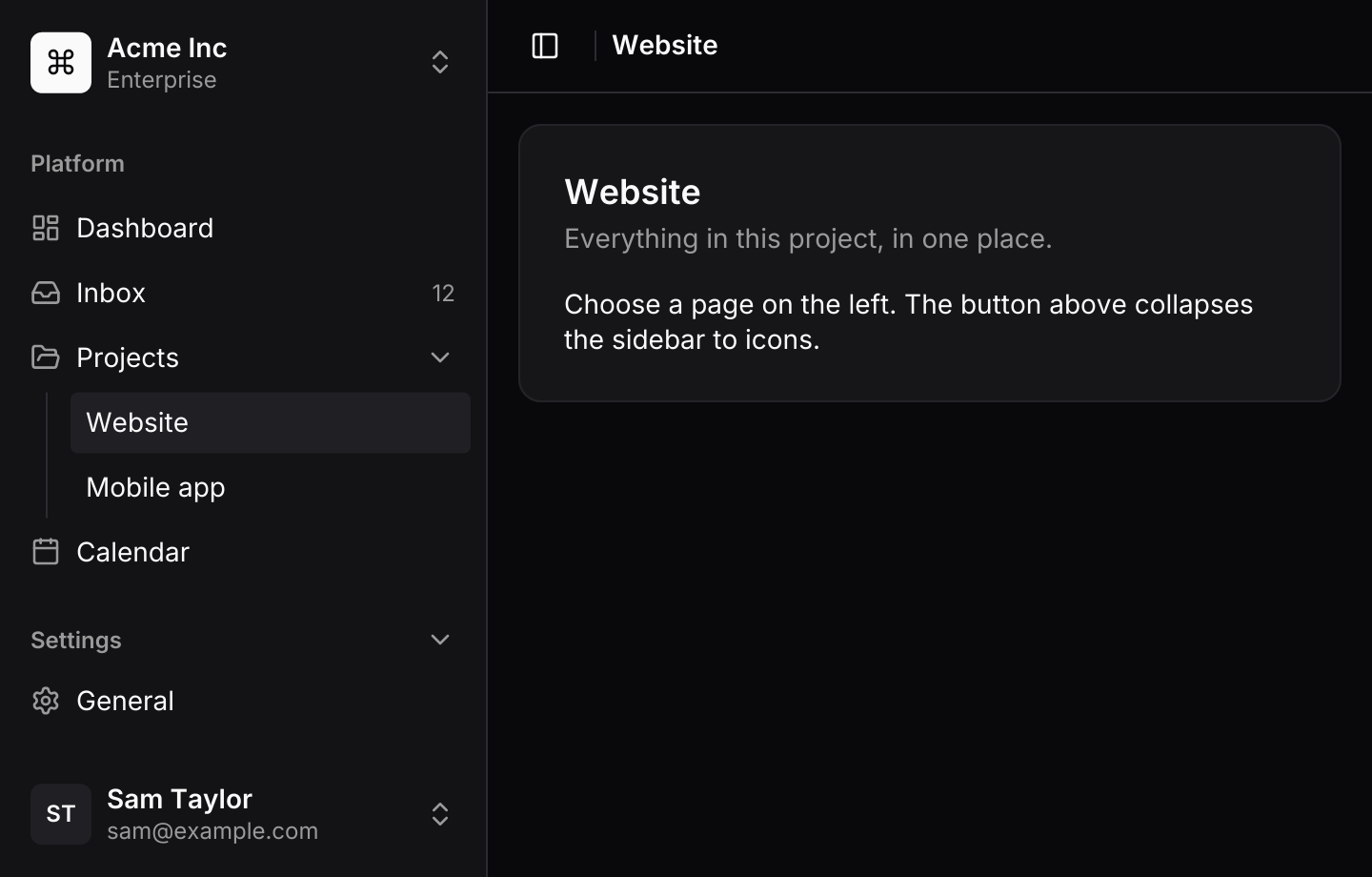
The sidebar is drawn on a surface a shade off the page, with a one pixel edge, so it sits comfortably beside cards and other content. Rows use the same look as menus and lists.
Small screens
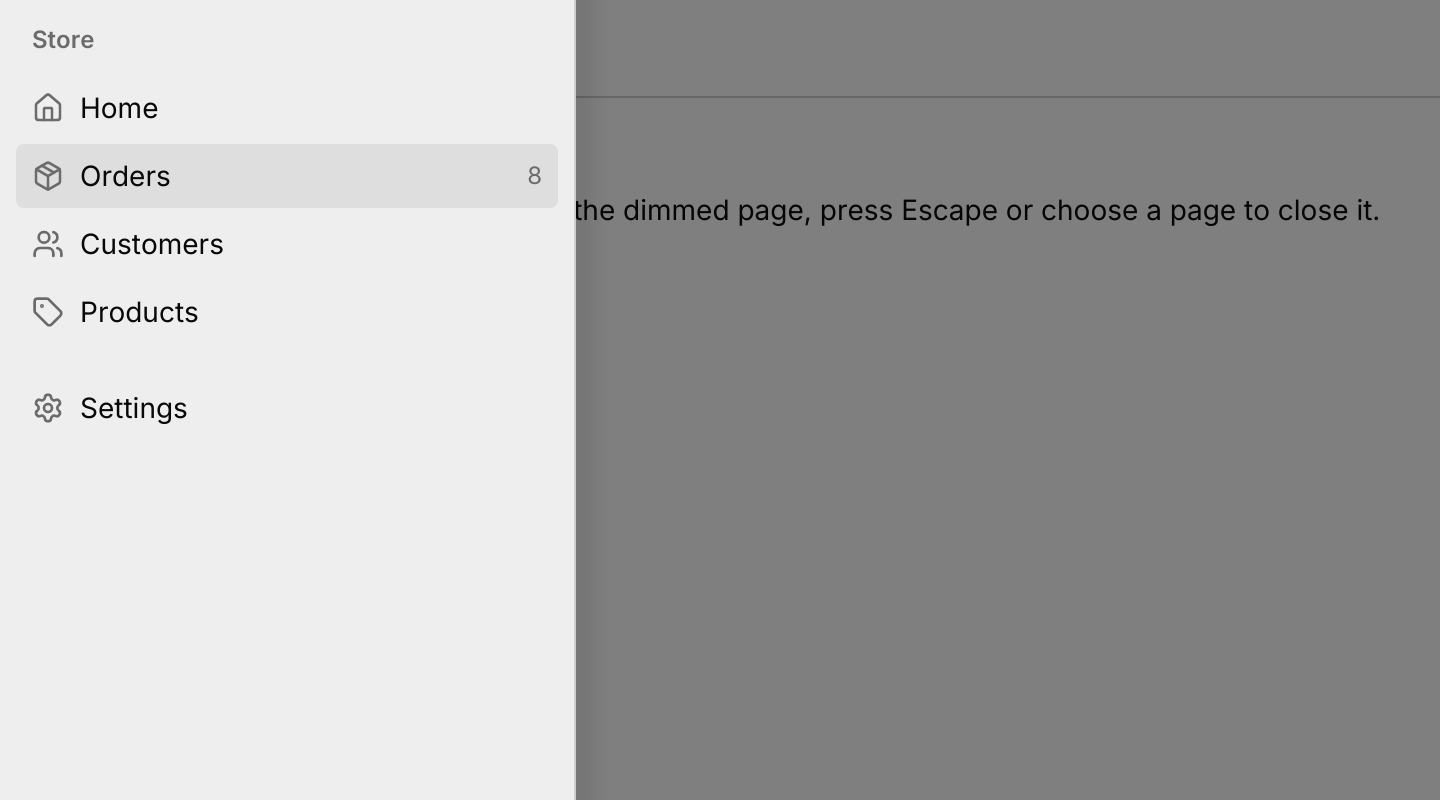
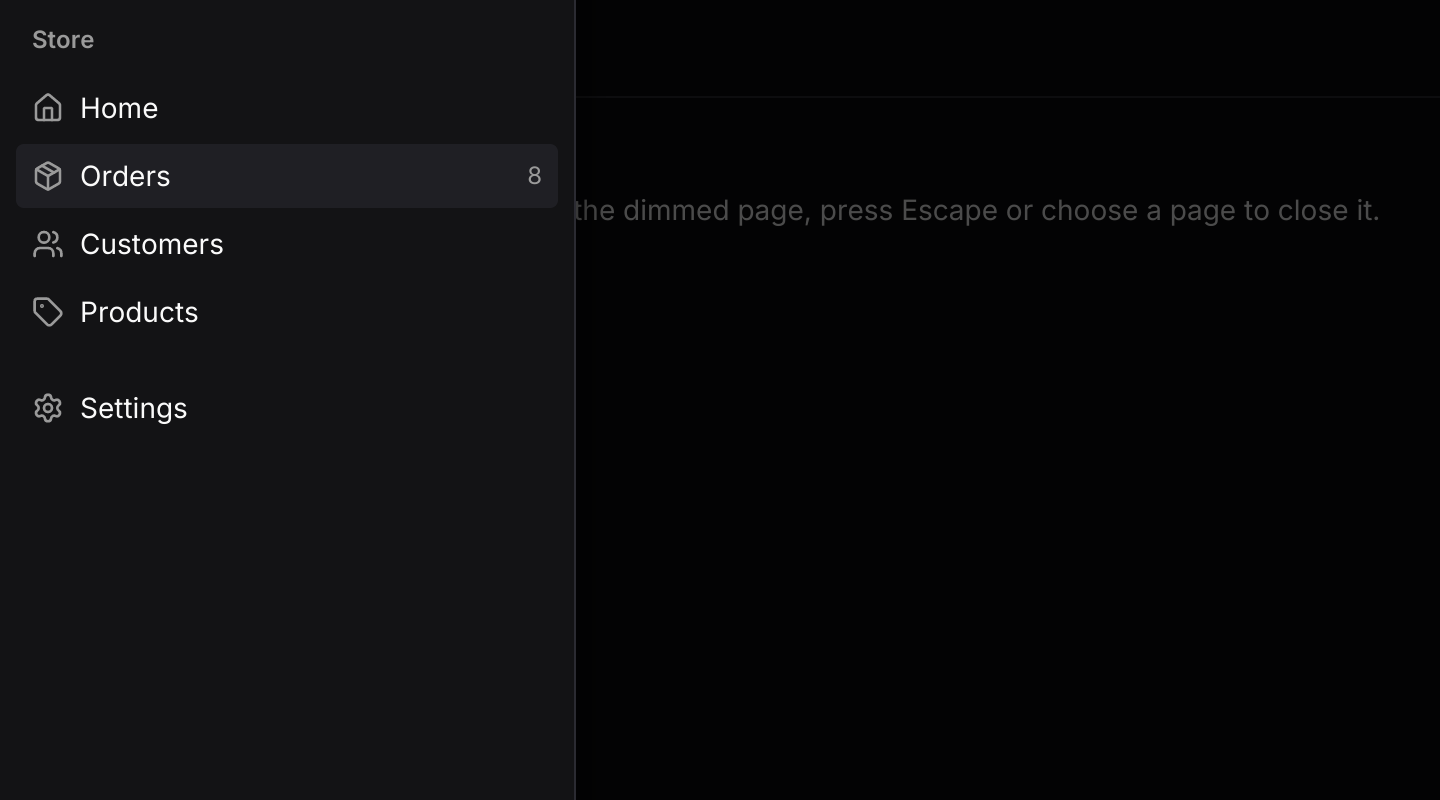
With .content(...), the sidebar notices when its width falls below the breakpoint and sends Event::Narrow(true). From then on it is an off-canvas drawer: a bar above the page holds the trigger, and the drawer slides over a scrim. A tap on the scrim, Escape or choosing an item closes it, and widening the window closes it too. Event::Toggle does whichever fits, so one trigger button works at every size.
Keyboard focus
iced 0.14 has no general focus model, so the sidebar takes focus the way a text field does: a press inside it gives it focus, and a press outside or Escape takes it away. An open drawer always has focus. While focused, the sidebar resolves its own keymap and captures the keys it uses. Ctrl+B is meant to work anywhere, so route keys::subscription through state.shortcut, which only resolves that one action. Some browsers keep Ctrl+B for themselves, so the rail story also has a button.
Examples
Collapsed to a rail
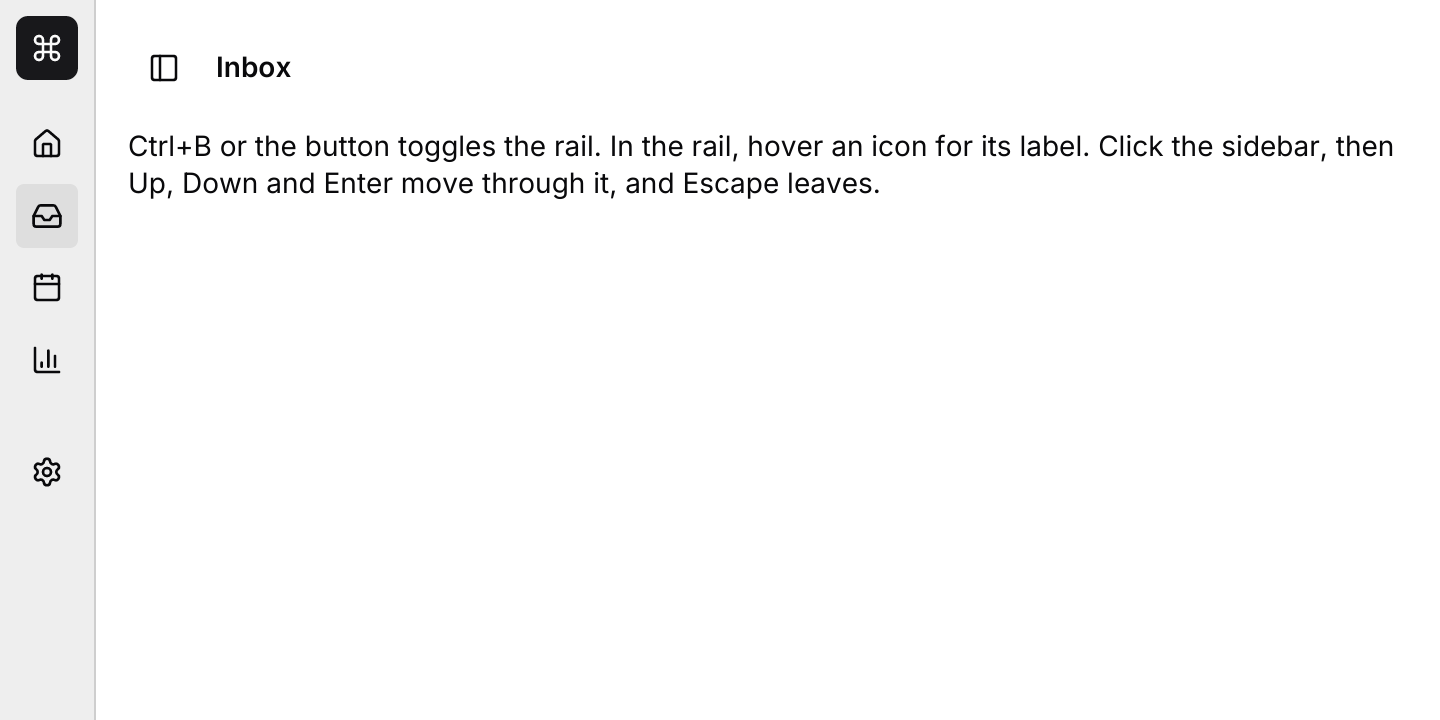
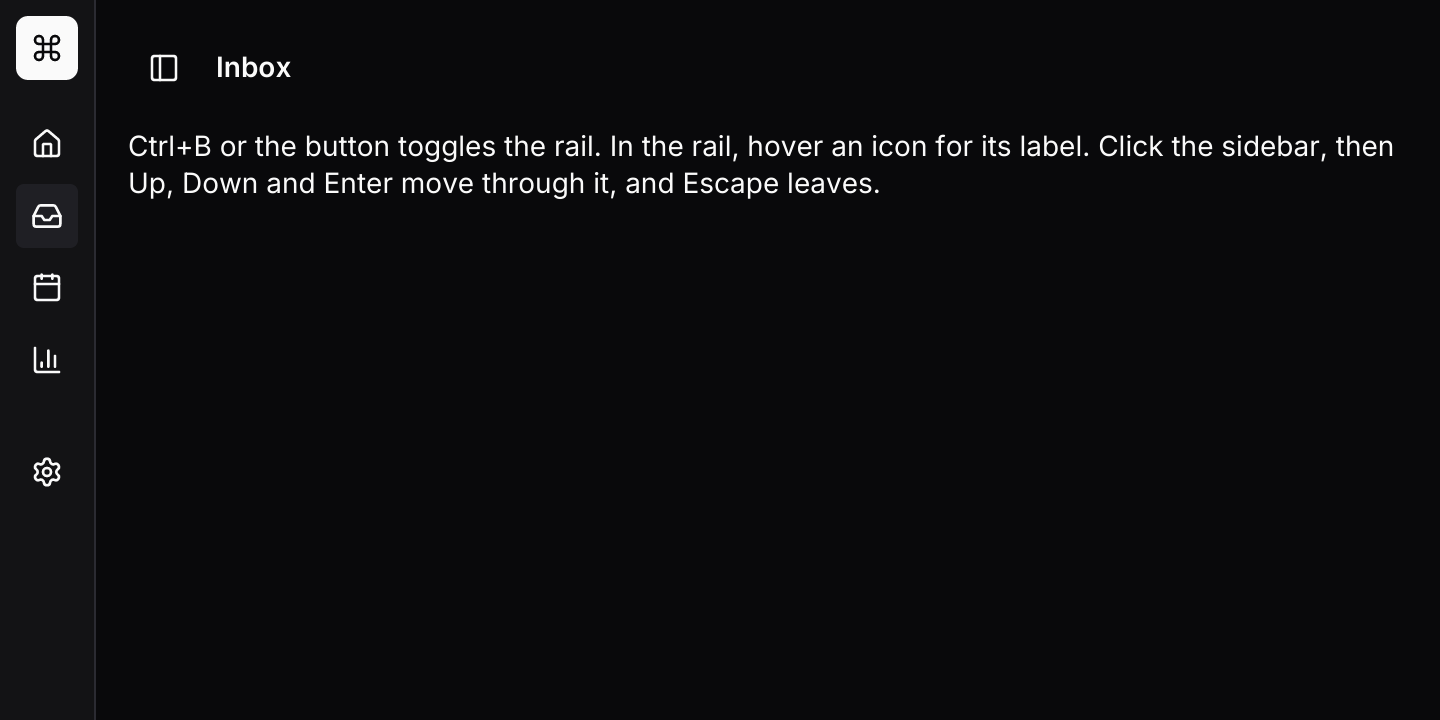
Icons only, with the label in a tooltip. Ctrl+B toggles the rail through the default keymap, routed from keys::subscription with State::shortcut.
use iced::widget::{column, container, row, text};
use iced::{Alignment, Element, Length, Subscription};
use iced_cube::keys::{self, Keymap};
use iced_cube::lucide;
use iced_cube::navigation::sidebar::{
    self, Action, Event, State, group, item, menu_button, sidebar,
};
use iced_cube::theme::{semibold, text_size};

#[derive(Debug, Clone, Copy, PartialEq, Eq)]
pub enum Page {
    Home,
    Inbox,
    Calendar,
    Reports,
    Settings,
}

#[derive(Debug, Clone)]
pub enum Message {
    Sidebar(Event<Page>),
    Key(keys::Event),
}

#[derive(Debug)]
pub struct Example {
    sidebar: State<Page>,
    keymap: Keymap<Action>,
}

impl Default for Example {
    fn default() -> Self {
        Self {
            sidebar: State::new([
                group(
                    "Workspace",
                    [
                        item(Page::Home, "Home").icon(lucide!(House)),
                        item(Page::Inbox, "Inbox").icon(lucide!(Inbox)).badge("3"),
                        item(Page::Calendar, "Calendar").icon(lucide!(Calendar)),
                        item(Page::Reports, "Reports").icon(lucide!(ChartColumn)),
                    ],
                ),
                group(
                    "",
                    [item(Page::Settings, "Settings").icon(lucide!(Settings))],
                ),
            ])
            .with_active(Page::Inbox)
            .with_rail(true),
            keymap: sidebar::default_keymap(),
        }
    }
}

impl Example {
    pub fn update(&mut self, message: Message) {
        let event = match message {
            Message::Sidebar(event) => Some(event),
            Message::Key(key) => self.sidebar.shortcut(&self.keymap, &key),
        };
        if let Some(event) = event {
            let _ = self.sidebar.update(event);
        }
    }

    pub fn view(&self) -> Element<'_, Message> {
        let title = self
            .sidebar
            .active()
            .and_then(|page| self.sidebar.item(page))
            .map_or("", |item| item.label.as_str());

        let page = column![
            row![
                sidebar::trigger(Some(Message::Sidebar(Event::Toggle))),
                text(title).size(text_size::SM).font(semibold()),
            ]
            .spacing(8)
            .align_y(Alignment::Center),
            text("Ctrl+B or the button toggles the rail. In the rail, hover an icon for its label. Click the sidebar, then Up, Down and Enter move through it, and Escape leaves.")
                .size(text_size::SM),
        ]
        .spacing(12)
        .padding(16);

        sidebar(&self.sidebar)
            .header(
                menu_button("Northwind")
                    .icon(lucide!(Command))
                    .compact(self.sidebar.is_compact()),
            )
            .content(container(page).width(Length::Fill))
            .trigger(false)
            .keymap(self.keymap.clone())
            .on_event(Message::Sidebar)
            .into()
    }

    pub fn subscription(&self) -> Subscription<Message> {
        keys::subscription().map(Message::Key)
    }
}Drawer on narrow windows
Below the breakpoint the sidebar slides over the page on a scrim, opened by the trigger in the bar above the content. This example sets the breakpoint so high that it always shows the drawer.
use iced::widget::{column, text};
use iced::{Element, Length};
use iced_cube::lucide;
use iced_cube::navigation::sidebar::{Event, State, group, item, sidebar};
use iced_cube::theme::{semibold, text_size};

#[derive(Debug, Clone, Copy, PartialEq, Eq)]
pub enum Page {
    Home,
    Orders,
    Customers,
    Products,
    Settings,
}

#[derive(Debug, Clone)]
pub enum Message {
    Sidebar(Event<Page>),
}

#[derive(Debug)]
pub struct Example {
    sidebar: State<Page>,
}

impl Default for Example {
    fn default() -> Self {
        let mut sidebar = State::new([
            group(
                "Store",
                [
                    item(Page::Home, "Home").icon(lucide!(House)),
                    item(Page::Orders, "Orders")
                        .icon(lucide!(Package))
                        .badge("8"),
                    item(Page::Customers, "Customers").icon(lucide!(Users)),
                    item(Page::Products, "Products").icon(lucide!(Tag)),
                ],
            ),
            group(
                "",
                [item(Page::Settings, "Settings").icon(lucide!(Settings))],
            ),
        ])
        .with_active(Page::Orders);
        let _ = sidebar.update(Event::Narrow(true));
        let _ = sidebar.update(Event::OpenDrawer);
        Self { sidebar }
    }
}

impl Example {
    pub fn update(&mut self, message: Message) {
        let Message::Sidebar(event) = message;
        let _ = self.sidebar.update(event);
    }

    pub fn view(&self) -> Element<'_, Message> {
        let title = self
            .sidebar
            .active()
            .and_then(|page| self.sidebar.item(page))
            .map_or("", |item| item.label.as_str());

        let page = column![
            text(title).size(text_size::LG).font(semibold()),
            text("The menu button opens the drawer. Tap the dimmed page, press Escape or choose a page to close it.")
                .size(text_size::SM),
        ]
        .spacing(8)
        .padding(16)
        .width(Length::Fill);

        // Every window counts as narrow here, so the drawer shows on the
        // desktop too. Apps usually keep the default breakpoint.
        sidebar(&self.sidebar)
            .content(page)
            .breakpoint(f32::INFINITY)
            .on_event(Message::Sidebar)
            .into()
    }
}In a resizable panel
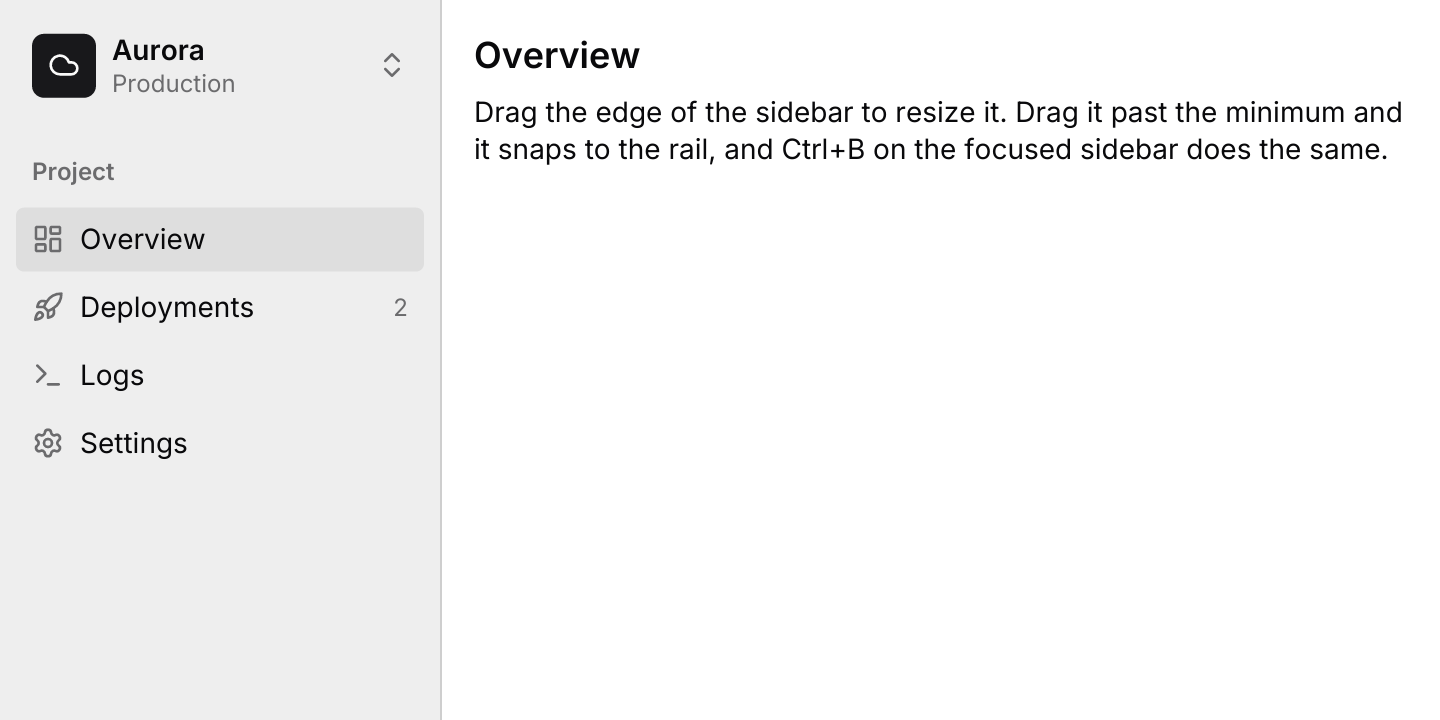
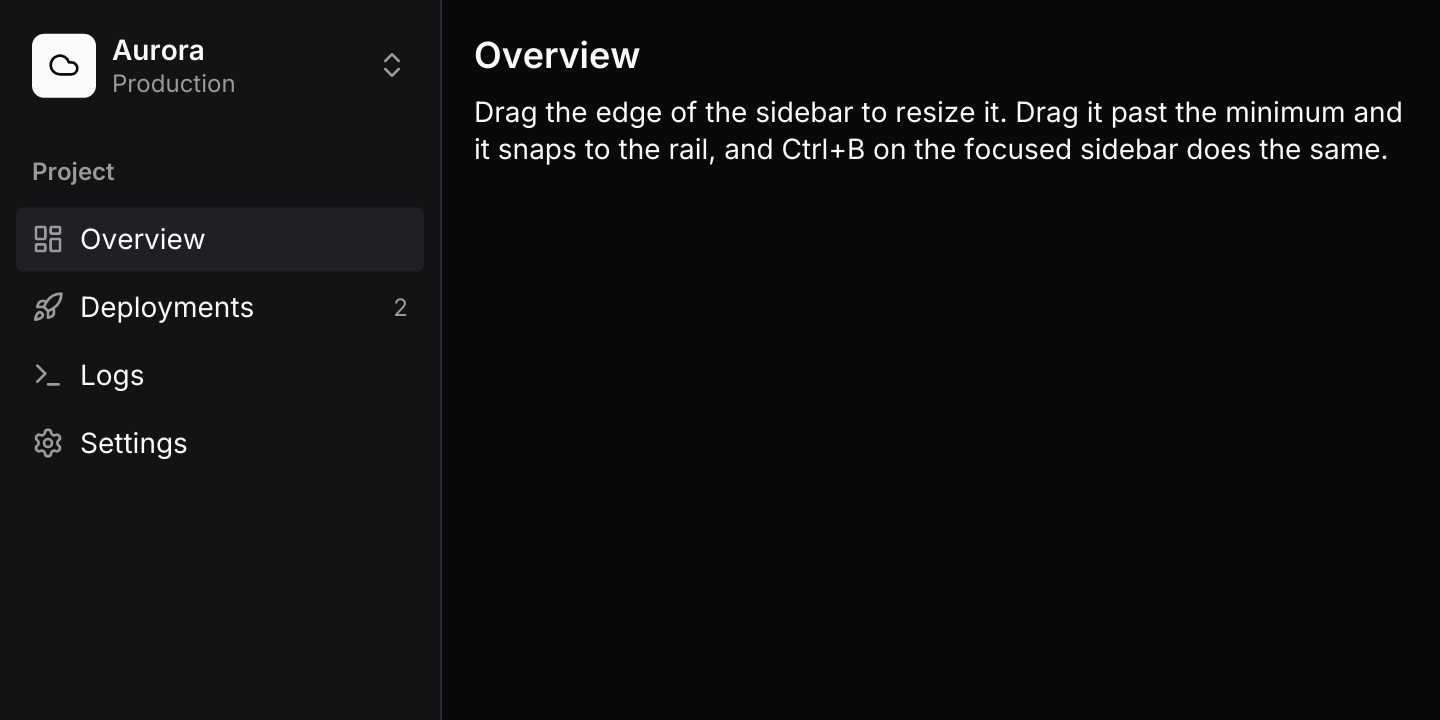
The sidebar fills a collapsible panel beside the page. Dragging the panel below its minimum snaps it to the width of the rail.
use iced::widget::{column, container, text};
use iced::{Element, Length};
use iced_cube::layout::resizable_panel::{self, Extent, Output, panel, resizable_panel};
use iced_cube::lucide;
use iced_cube::navigation::sidebar::{Event, RAIL_WIDTH, State, group, item, menu_button, sidebar};
use iced_cube::theme::{semibold, text_size};

#[derive(Debug, Clone, Copy, PartialEq, Eq)]
pub enum Page {
    Overview,
    Deployments,
    Logs,
    Settings,
}

#[derive(Debug, Clone)]
pub enum Message {
    Sidebar(Event<Page>),
    Panels(resizable_panel::Event),
}

#[derive(Debug)]
pub struct Example {
    sidebar: State<Page>,
    panels: resizable_panel::State,
}

impl Default for Example {
    fn default() -> Self {
        Self {
            sidebar: State::new([group(
                "Project",
                [
                    item(Page::Overview, "Overview").icon(lucide!(LayoutDashboard)),
                    item(Page::Deployments, "Deployments")
                        .icon(lucide!(Rocket))
                        .badge("2"),
                    item(Page::Logs, "Logs").icon(lucide!(Terminal)),
                    item(Page::Settings, "Settings").icon(lucide!(Settings)),
                ],
            )])
            .with_active(Page::Overview),
            // Collapsing the panel to the rail's width shows the rail.
            panels: resizable_panel::State::new([
                panel(Extent::Pixels(220.0))
                    .min(Extent::Pixels(180.0))
                    .max(Extent::Fraction(0.5))
                    .collapsible(true)
                    .collapsed_size(Extent::Pixels(RAIL_WIDTH)),
                panel(Extent::Fraction(1.0)).min(Extent::Pixels(120.0)),
            ]),
        }
    }
}

impl Example {
    pub fn update(&mut self, message: Message) {
        match message {
            Message::Sidebar(Event::Toggle | Event::ToggleRail) => {
                let _ = self.panels.update(resizable_panel::Event::Toggle(0));
                self.sync_rail();
            }
            Message::Sidebar(event) => {
                let _ = self.sidebar.update(event);
            }
            Message::Panels(event) => {
                if let Some(Output::Collapsed(0) | Output::Expanded(0)) = self.panels.update(event)
                {
                    self.sync_rail();
                }
            }
        }
    }

    fn sync_rail(&mut self) {
        let rail = self.panels.is_collapsed(0);
        let _ = self.sidebar.update(Event::SetRail(rail));
    }

    pub fn view(&self) -> Element<'_, Message> {
        let navigation = sidebar(&self.sidebar)
            .header(
                menu_button("Aurora")
                    .subtitle("Production")
                    .icon(lucide!(Cloud))
                    .compact(self.sidebar.is_compact()),
            )
            .width(Length::Fill)
            .on_event(Message::Sidebar);

        let title = self
            .sidebar
            .active()
            .and_then(|page| self.sidebar.item(page))
            .map_or("", |item| item.label.as_str());
        let page = container(
            column![
                text(title).size(text_size::LG).font(semibold()),
                text("Drag the edge of the sidebar to resize it. Drag it past the minimum and it snaps to the rail, and Ctrl+B on the focused sidebar does the same.")
                    .size(text_size::SM),
            ]
            .spacing(8),
        )
        .padding(16)
        .width(Length::Fill)
        .height(Length::Fill);

        resizable_panel(&self.panels, [navigation.into(), page.into()])
            .on_event(Message::Panels)
            .into()
    }
}API
| Item | Description |
|---|---|
group(label, items) | A labelled group of items. An empty label draws no heading. Add .collapsible(true) to let the heading open and close it. |
item(id, label) | A navigation item. Add .icon(glyph), .badge(text), .disabled(true) or .children(items) for one level of nested items. |
State:: | Holds the navigation with every group open and nothing active. |
.with_active(id) / .with_rail(bool) | Starts on an item, opening its parent, or collapsed to the icon rail. |
state.update(Event) | Handles clicks, keyboard navigation, the rail and the drawer. Returns Output::Activated(id) when an item is chosen. |
state.shortcut(&keymap, &key) | Resolves the app-wide Ctrl+B from keys::subscription. The sidebar handles its other keys while it has focus. |
state.active() / state.item(id) / state.is_compact() | The active item, an item's details, and whether the rail is showing, for the header and footer buttons. |
sidebar(&state) | Renders the navigation. Items render disabled until .on_event is set. |
.header(element) / .footer(element) | Content above and below the groups, such as a workspace switcher and the signed in user. |
.content(element) | The page beside the sidebar. With content, the sidebar becomes a drawer below the breakpoint; without it only the panel is drawn. |
.breakpoint(width) | The window width below which the sidebar becomes a drawer. Defaults to 640. |
.trigger(bool) | Whether narrow windows get a bar holding the drawer's trigger. Turn it off to put sidebar::trigger in your own header. |
.width(length) | The expanded width, 256 by default. Use Length::Fill inside a resizable panel. |
.keymap(Keymap<Action>) / sidebar:: | The shortcuts the focused sidebar resolves. |
sidebar:: | The icon button that toggles the rail, or the drawer on a narrow window. Send Event::Toggle from it. |
menu_button(title) | A header or footer button with .subtitle, .icon or .initials, and .compact(state.is_compact()) for the rail. Wrap it in a dropdown menu for a switcher or a user menu. |
Keyboard
Default shortcuts. Every one can be changed or removed with a keymap; see Keyboard shortcuts.
| Keys | Action |
|---|---|
| ArrowDown | Next Highlights the next row, wrapping. |
| ArrowUp | Previous Highlights the previous row, wrapping. |
| Home | First Highlights the first row. |
| End | Last Highlights the last row. |
| Enter or Space | Activate Activates the highlighted item or opens and closes its group. |
| ArrowRight | Expand Opens the highlighted group or parent item, or moves into it. |
| ArrowLeft | Collapse Closes the highlighted group or parent item, or moves out to it. |
| Ctrl+B | ToggleRail Collapses the sidebar to an icon rail and back, or toggles the drawer on a narrow window. |
| Escape | Close Closes the drawer, or leaves the sidebar. |